
Access o aplikacji "Locksite"
Creating a contact with limited permissions
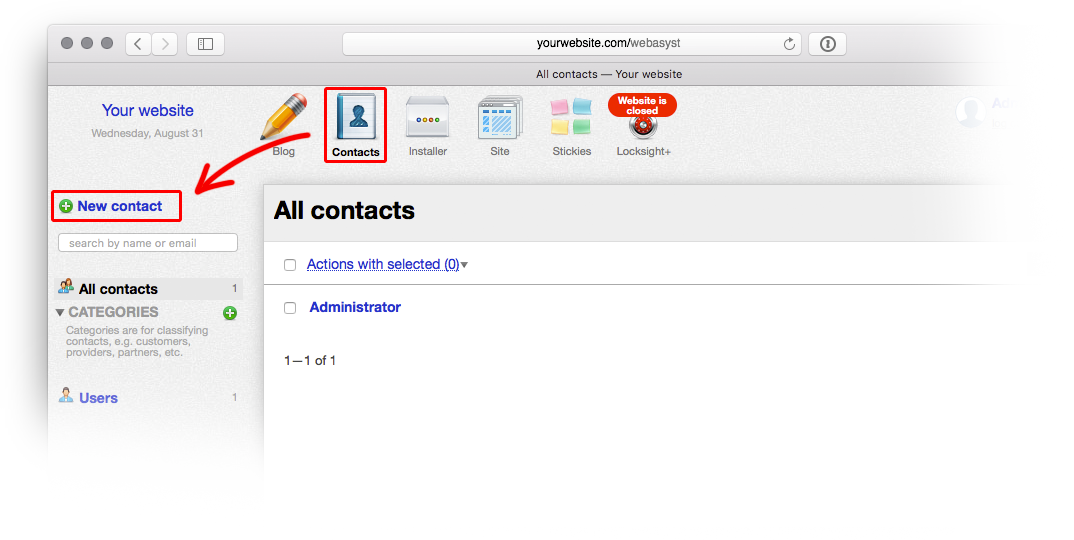
Open applications "Contacts" or "CRM" and click the "New contact" link
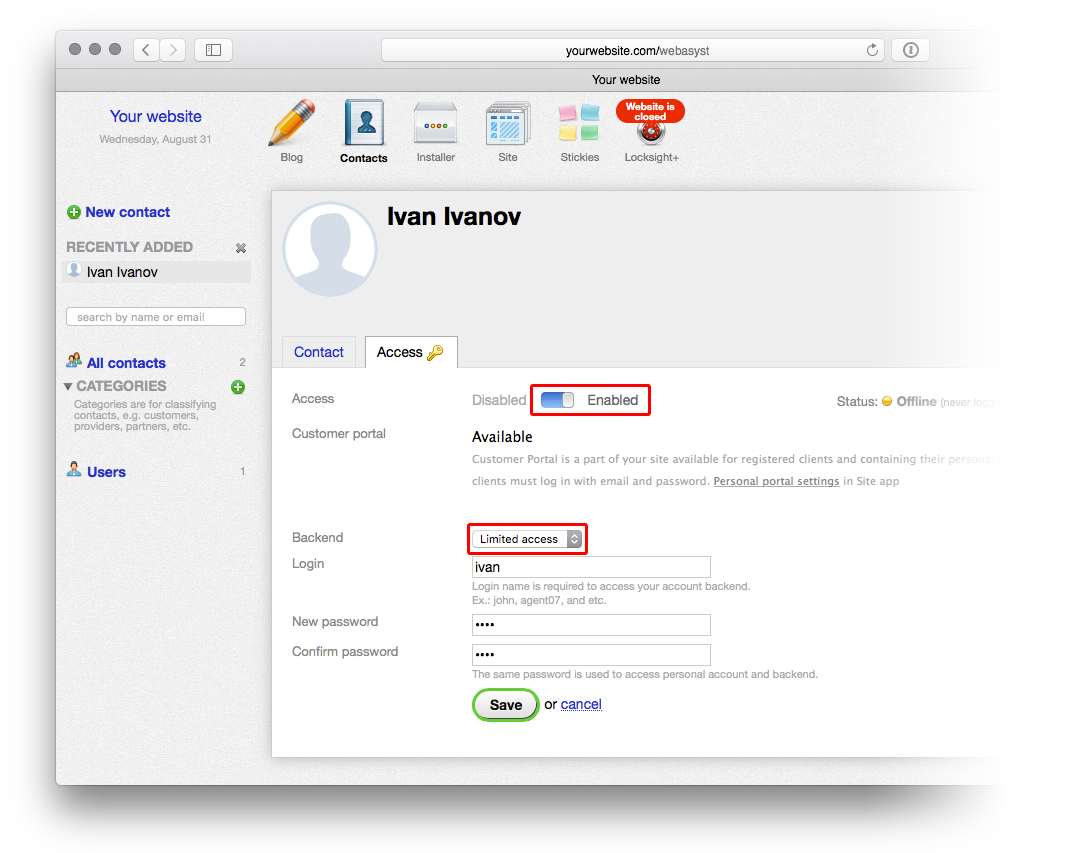
Enter contact details and save the contact. In the window that opens, select the "Access" tab, move the access settings slider to the "Enabled" position, and from the "Backend" dropdown list, select "Limited access".
Then enter the username and password that will be used to access the locked website.
Click the "Save" button. The application access configuration interface will appear on screen. From the dropdown list next to the "Locksight" application, select "Limited access":
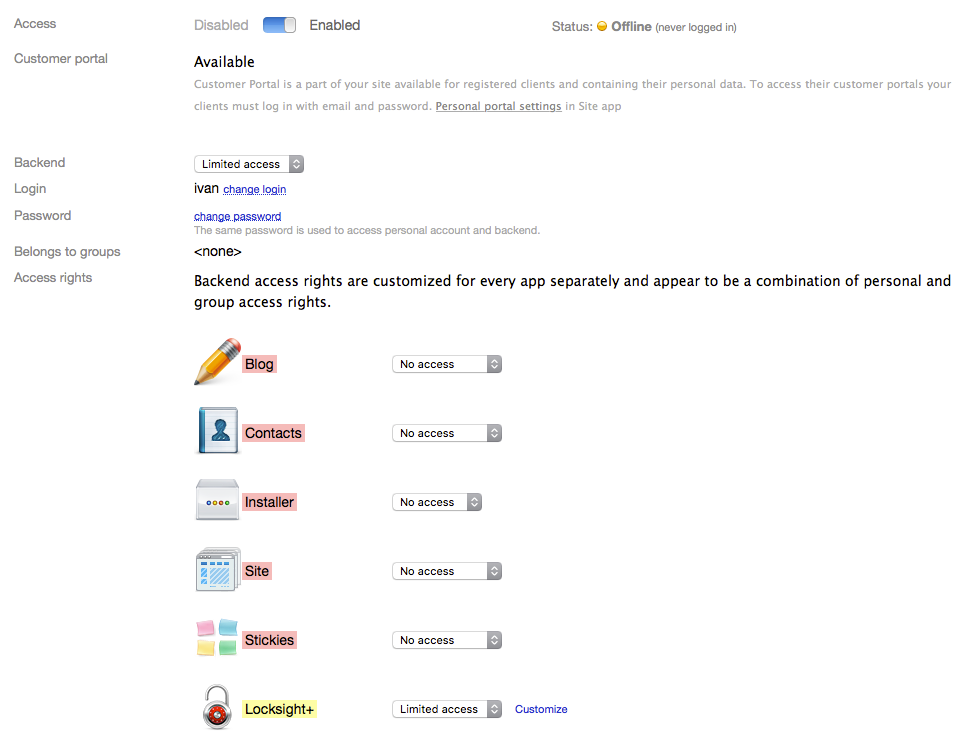
In the window displayed, select the actions the contact is allowed to perform. For example, if you need a person to be able to view the locked website, but you don't want them to accidentally unlock the site, you should select only one checkbox in the appropriate section.
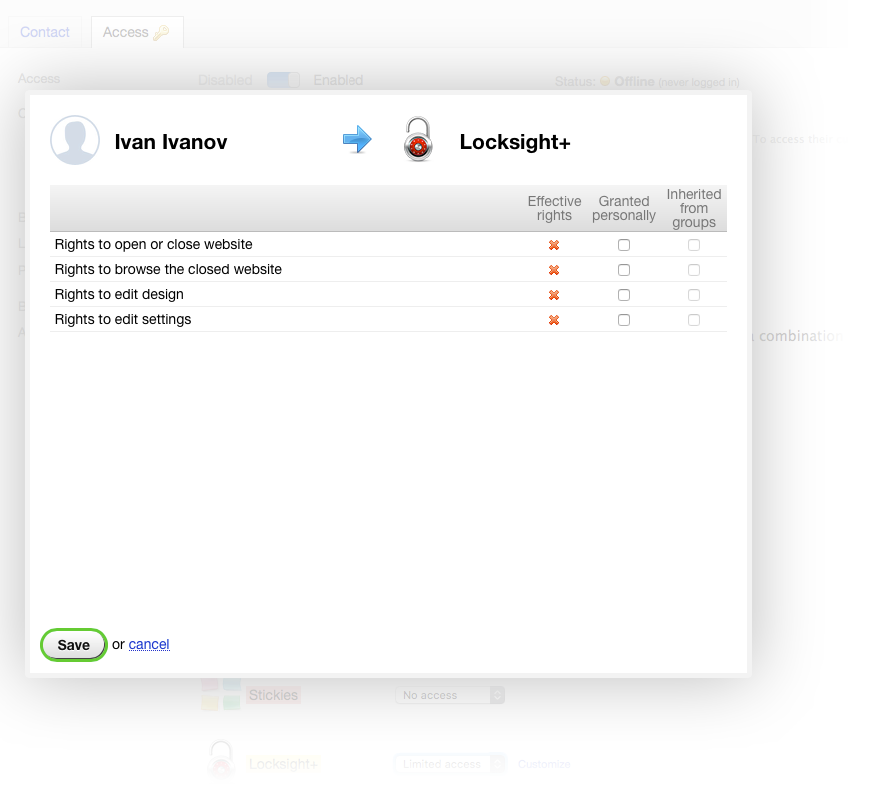
After saving the changes, the contact configuration is complete.