Discover everything our e-commerce platform has to offer - from setting up a store, through marketing and integrations, to security, technical support, and design. Find out how to grow your online sales with Web Systems Pro.
Expand your store’s capabilities with ready-made integrations - online payments, wholesalers, shipping, SEO, marketing, CRM, notifications, and more. All designed to help you operate faster, more effectively, and more conveniently.
Searching for support for your online store? Visit our blog, knowledge base, forum, and expert articles. Here you’ll find instructions, e-commerce tips, and answers to frequently asked questions - everything you need to run a successful online store.
We strive to explain in simple terms how our theme templates work - including descriptions of their features and settings. In addition, we regularly update and expand our instructions to ensure they remain clear and helpful at every stage of using the the
The plugins settings do not include training or consultation regarding opening and activating a PayPal account.
You must open an account yourself and confirm your business details to remove account access restrictions.
The instructions are intended for use with a fully activated working account.
Plugin supports the "Sandbox" mode (test mode / developer mode), but free technical support does not include consultation or instructions on how to perform testing, where to get test payment accounts, etc.
Step-by-step instructions
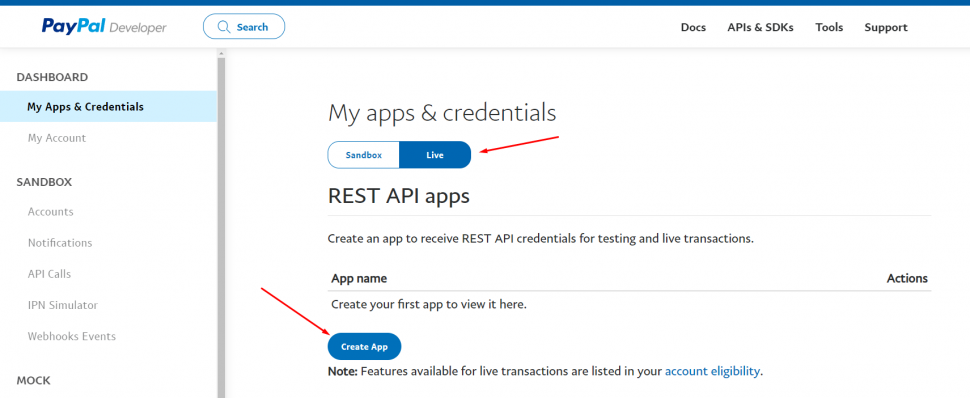
Open the PayPal Developer page at "MyApps & Credential":
Click "Live" (in the plugins settings, also set the mode to Live), then click the "Create app" button:
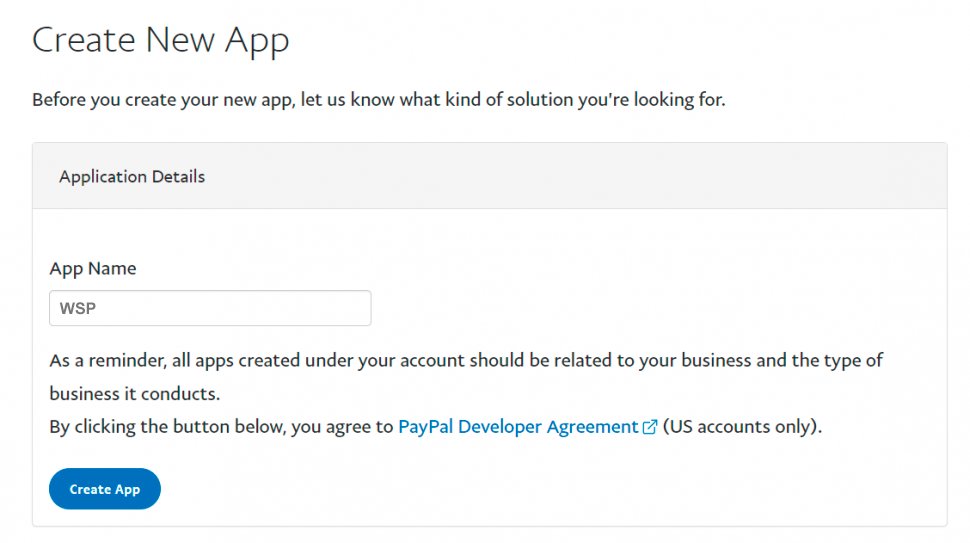
Choose a name for your application, then click the "Create app" button:
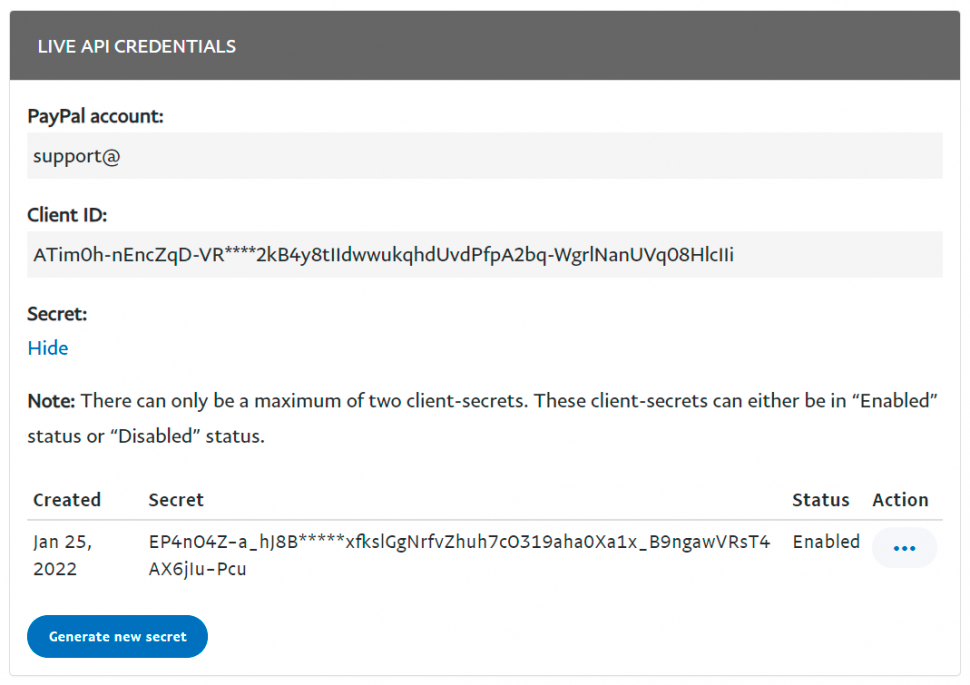
Enter the obtained Client ID and Secret into the plugins settings:
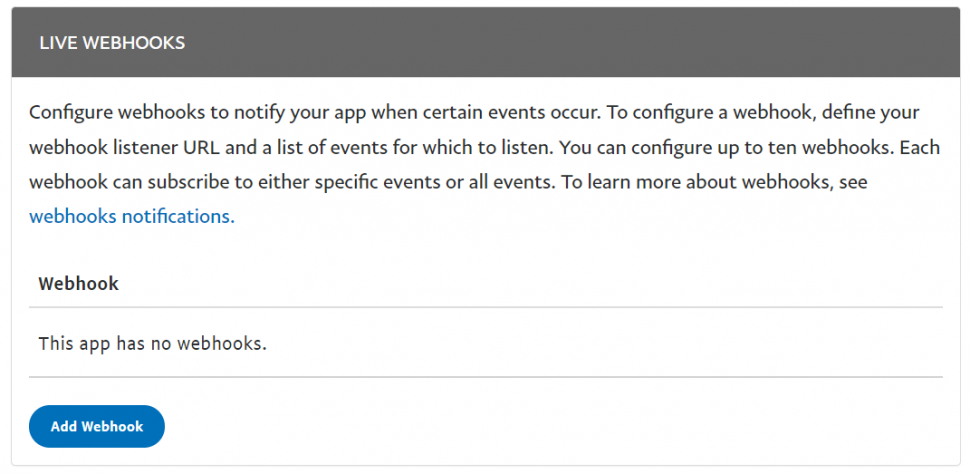
In the Live Webhooks block, click the "Add Webhook" button:
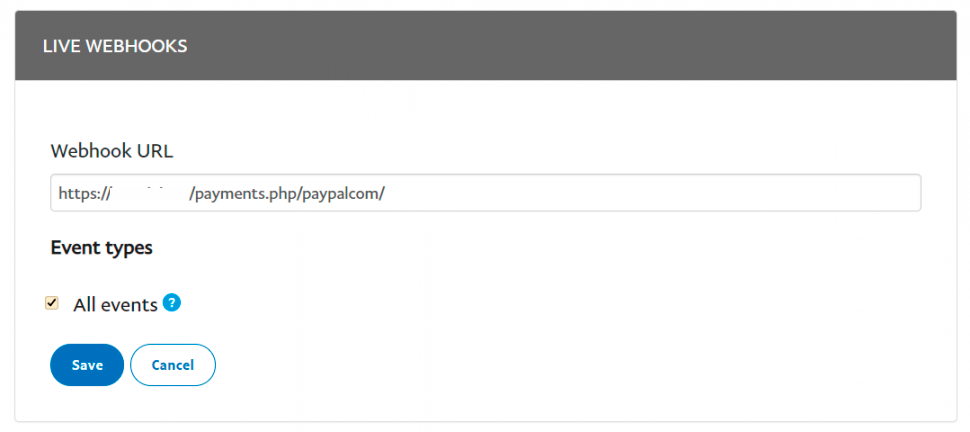
In the Webhook URL field, enter the URL copied from the plugins settings and select "All events" to include all events (the screenshot is shortened):
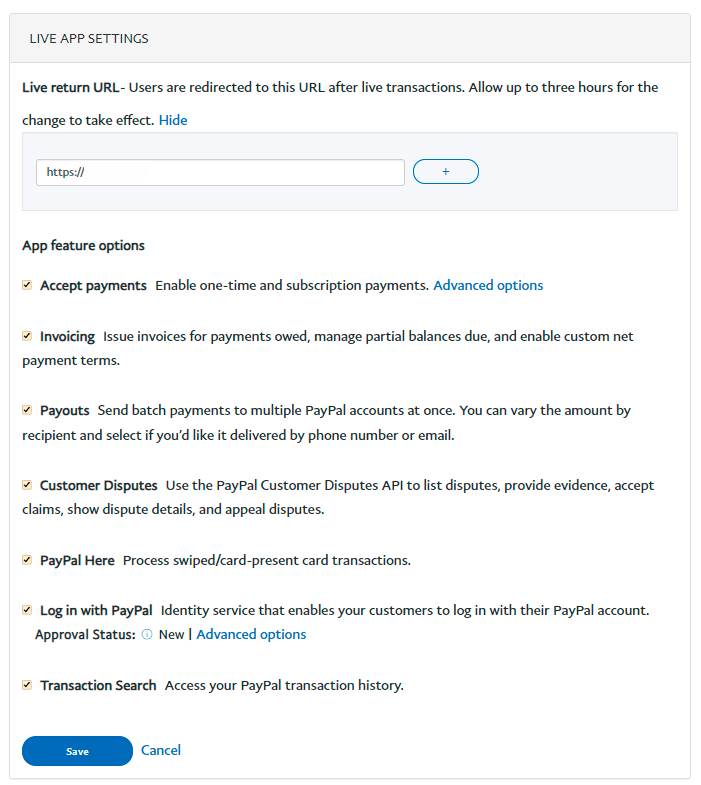
In the Live App Settings block, in the Live return URL field, enter your website address (in reality, enter anything-this field just needs to be filled), check all checkboxes, and click "Save":
You can now accept payments!