
Configuration guide o wtyczce "Przelewy24"
Step-by-step guide on how to connect the Shop app and CRM with the Przelewy24 payment system.
You can receive payments via the Przelewy24 payment system using plugins, which you must install via Installer.
1. Register with "Przelewy24"
Create a merchant account on the payment system website.
2. Install the plugin
Log in to your Web Systems Pro account and in the "Installer" application, search for the "Przelewy24" plugin and install it with one click (if you already have a license for the plugin).
3. Add a payment method in the Shopy-Script app or CRM
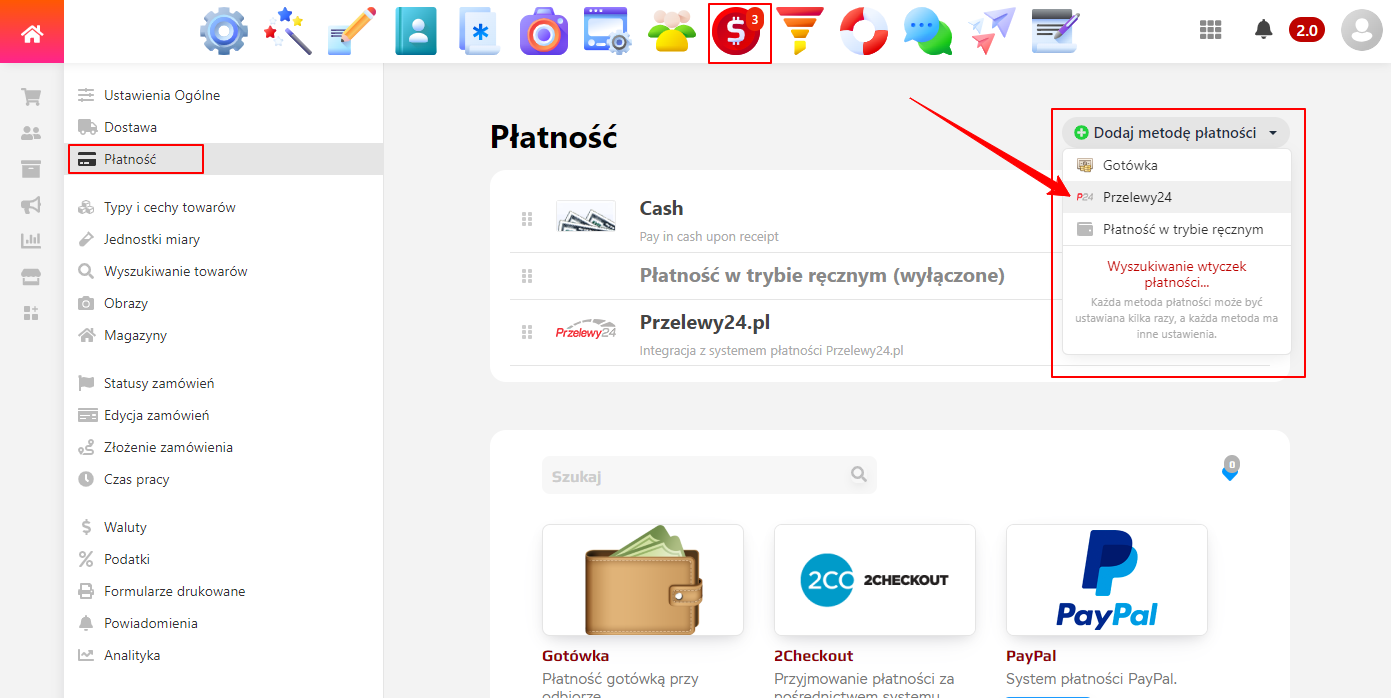
In the section "Shop → Settings → Payment", select the installed "Przelewy24" plugin from the dropdown menu "Add payment method".
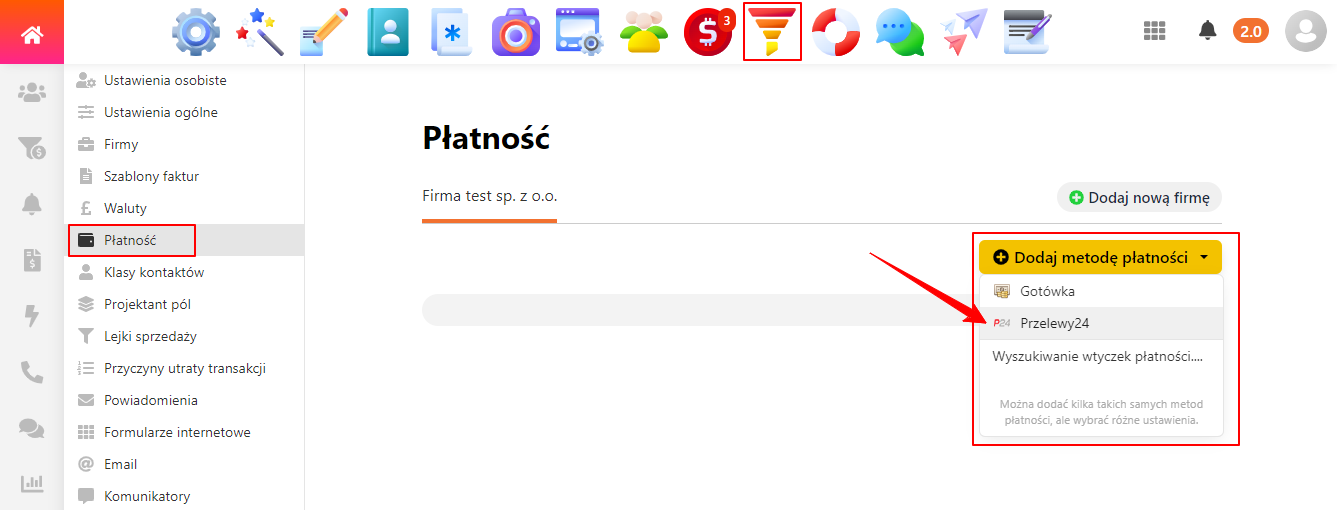
For CRM, in the section "CRM → Settings → Payment", select the installed "Przelewy24" plugin from the dropdown menu "Add payment method".
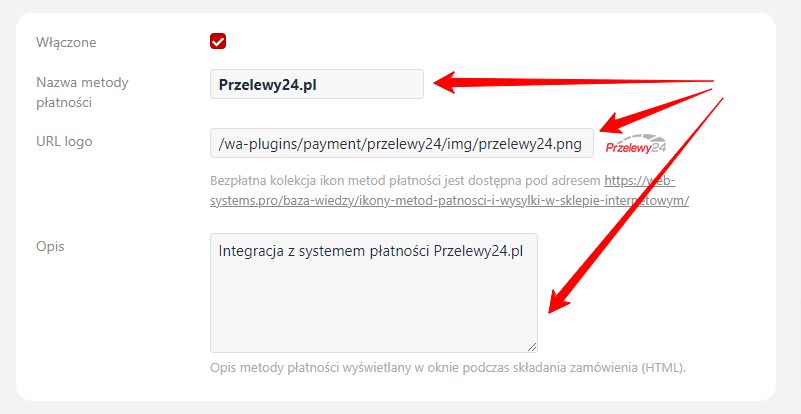
If needed, change the default name, logo, and description of the payment method - these will be visible to customers during transaction processing.
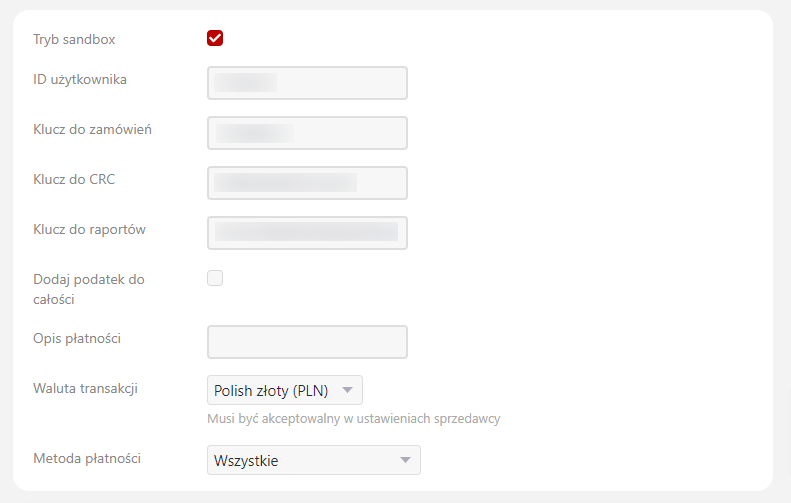
Fill in and save the remaining settings:
- Sandbox mode - enable preliminary testing of plugins. If this option is enabled, you will need the keys listed below, which can be found in your Sandbox account.
- User ID - your login for the Przelewy24 personal account
- Order key - after Przelewy24 confirms all your data, all keys can be found in your Personal Account.
- CRC key - after Przelewy24 confirms all your data, all keys can be found in your Personal Account.
- Report key - after Przelewy24 confirms all your data, all keys can be found in your Personal Account.
- Add tax to total - if needed, adds the VAT rate set in your store to the total order amount.
- Payment description
- Transaction currency
- Payment method - you can choose to display all available payment options to the customer or select a specific one from the list.