

Settings o aplikacji "Locksite+"
1. Creating the "Locksite+" environment (if necessary)
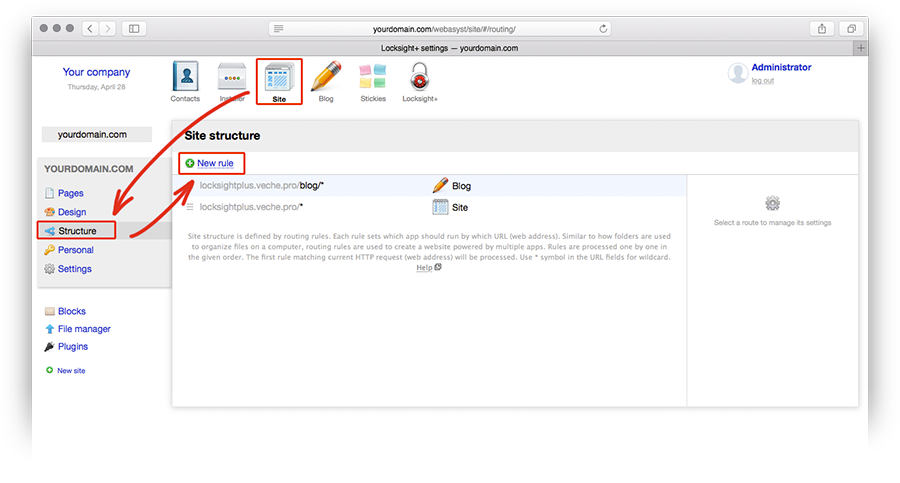
After installing the "Locksite+" app, its environment is automatically created in the Site app. However, in some cases creating an environment may be required (for example, when adding a new domain to Web Systems Pro). If needed, go to the Site app. From the left menu, select "Structure", then click the "New rule" link.
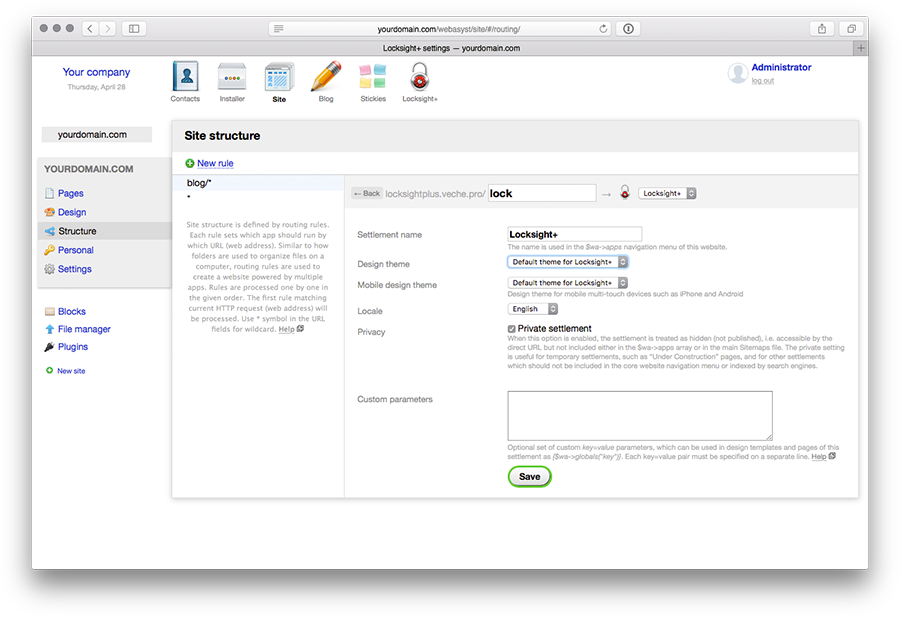
In the form that appears on the right, select "Locksite+" from the dropdown list, and in the text input field on the left, complete your site address with the environment name. For example, enter "lock".
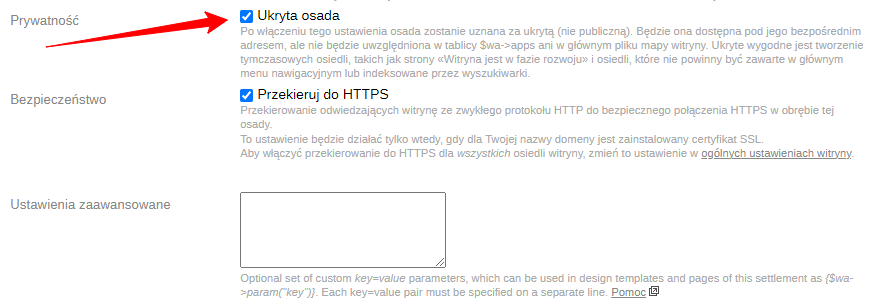
Fill in the remaining fields as follows:
Save the changes. An example of the created rule result is shown below.
2. Setting "Locksite+" options
Go to the "Locksite+" app. Set the "Site is closed" slider to "Yes". Change the message displayed on screen if needed, then save the changes.
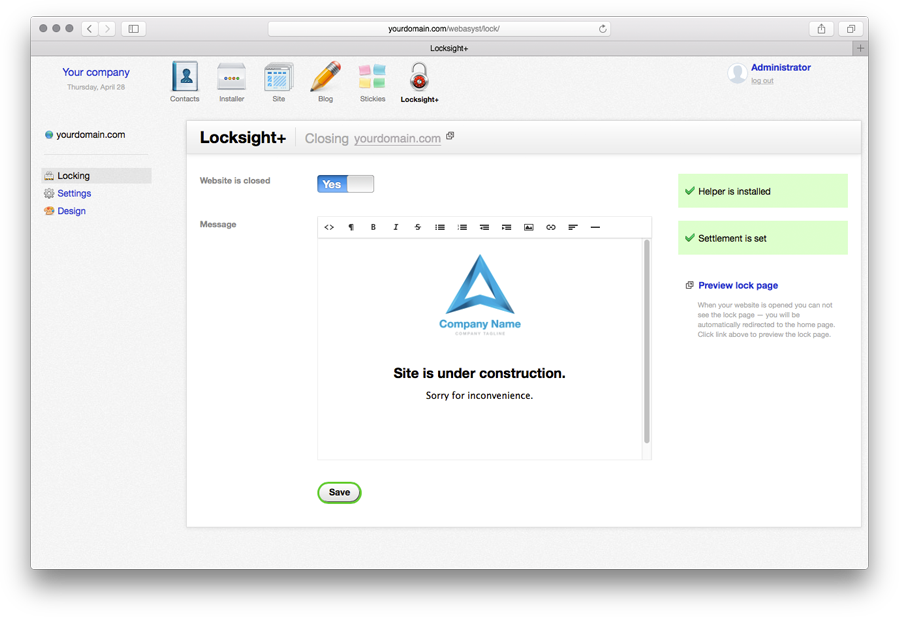
In the app, you can also change the "Locksite+" app theme and set advanced site closure options. To do this, use the corresponding sidebar menu items.
Within a minute, the app icon will notify you that the site is in closed mode (the icon update delay is due to limitations of the >Web Systems Pro< system).

3. Adding helper to templates
All that remains is to add the "Locksite+" helper to the templates of apps installed in >Web Systems Pro<. To do this, in each used app you need to go to project editing, select the index.html file, and add the following line at the beginning of the page:
{if $wa->lock}{$wa->lock->set()}{/if}
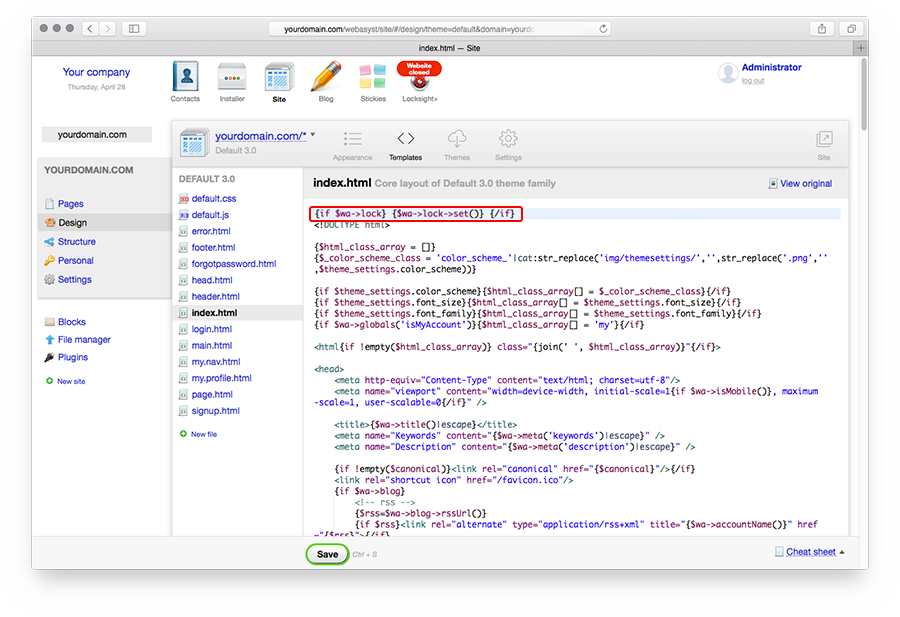
This completes the app configuration. Now, if you access your site from another computer or browser, you will see the intermediate page.
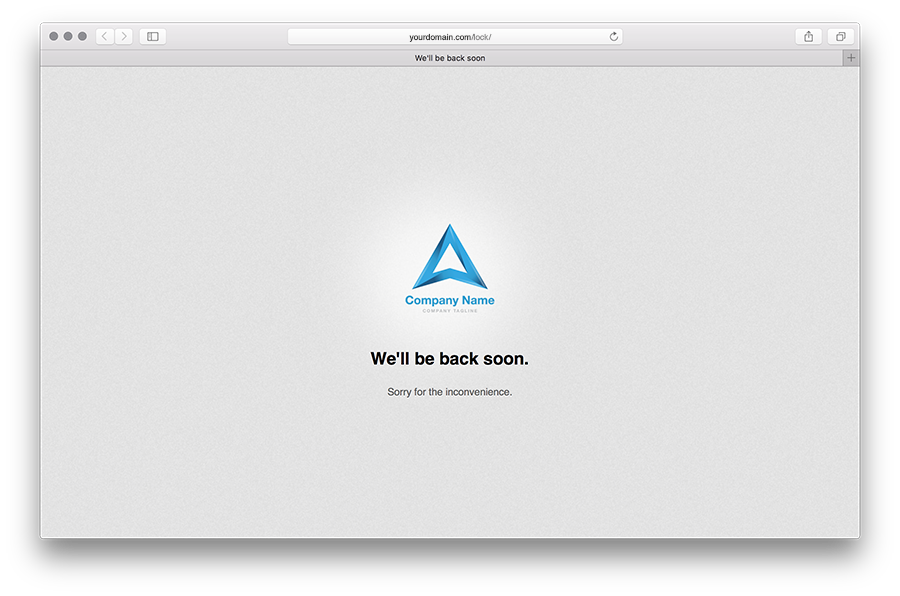
To open the site, simply go to the "Locksite+" app, set the switch to "No", and save the changes.
Automatic settings verification
Application has a built-in system for checking app billing settings and the presence of the helper in the template. When opening the app, validation results are displayed in the right column.
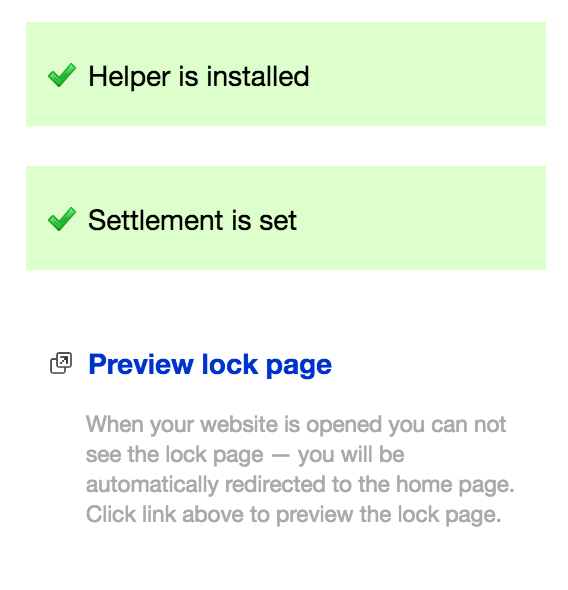
Note that if you have multiple domains, verification results are shown for the selected domain.
If you see the message "Cannot verify helper", it means your hosting does not support functions required for automatic verification. All other features of the "Locksight+" app remain fully available.