
Discover everything our e-commerce platform has to offer - from setting up a store, through marketing and integrations, to security, technical support, and design. Find out how to grow your online sales with Web Systems Pro.
Expand your store’s capabilities with ready-made integrations - online payments, wholesalers, shipping, SEO, marketing, CRM, notifications, and more. All designed to help you operate faster, more effectively, and more conveniently.
Searching for support for your online store? Visit our blog, knowledge base, forum, and expert articles. Here you’ll find instructions, e-commerce tips, and answers to frequently asked questions - everything you need to run a successful online store.
We strive to explain in simple terms how our theme templates work - including descriptions of their features and settings. In addition, we regularly update and expand our instructions to ensure they remain clear and helpful at every stage of using the the
Discover everything our e-commerce platform has to offer - from setting up a store, through marketing and integrations, to security, technical support, and design. Find out how to grow your online sales with Web Systems Pro.
Expand your store’s capabilities with ready-made integrations - online payments, wholesalers, shipping, SEO, marketing, CRM, notifications, and more. All designed to help you operate faster, more effectively, and more conveniently.
Searching for support for your online store? Visit our blog, knowledge base, forum, and expert articles. Here you’ll find instructions, e-commerce tips, and answers to frequently asked questions - everything you need to run a successful online store.
We strive to explain in simple terms how our theme templates work - including descriptions of their features and settings. In addition, we regularly update and expand our instructions to ensure they remain clear and helpful at every stage of using the the
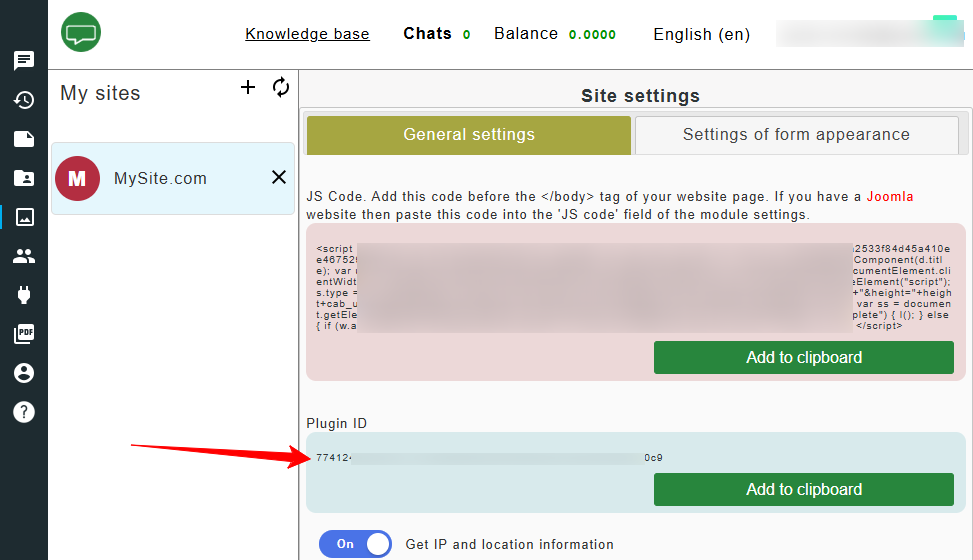
Create an account at chatandbot.com and copy the value from the "ChatAndBot plugins ID" field.
ChatAndBot plugins ID
Go to your website's admin panel and open “Installer” > “Plugins”.
Use the search function to find the “ChatAndBot” plugin and click “Install”.
Then go to “Shop” > “Plugin” and open the settings of the installed plugins.
In the “plugins ID” field, paste the code copied in the first step, enable the plugin, and click “Save”.
Done!
Option 2. Installation using a block.
Create an account at chatandbot.com and copy the value from the “Widget code” field.
Go to your website's admin panel and open “Site” > “Blocks” > “New block”.
Fill in the “ID” and “Description” fields (you may enter "chatandbot" in both). Paste the widget code copied in the first step into the block content and click “Save”.
Copy the block code.
Go to “Themes” > “index.html”. Instead of “index.html”, you can use other themes.
At the bottom of the theme, locate the closing “body” tag and paste the block code before it. Then click “Save”.