

Theme configuration plugins o wtyczce "CheckPay"
Initial configuration
-
Create two new order statuses in the store
(Shop->Settings->Order statuses->New order status)
For example, "Check availability" and "To pay". You can limit it to just one status ("Check availability") - this is the status to which an order requiring stock verification will be moved. The second status is more for convenience and can be any other existing status. - Create two new order actions
(Shop->Settings->Order statuses->Add new action)
First, name it "Check availability" (for example), and set its action ID to “check” (for example).
DO NOT TOUCH the setting "Status that should be assigned to the order after performing this action"!!!
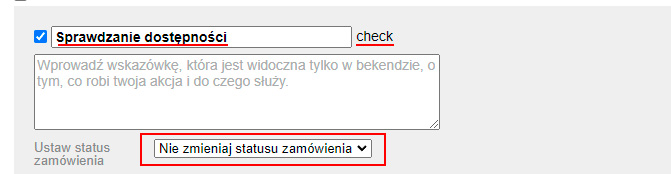
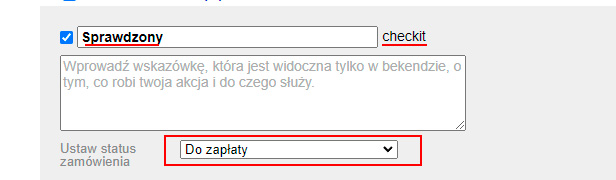
Name the second one "Checked" (for example), and set its action ID to “checkit” (for example).
In the configuration of "Status that should be assigned to the order after performing this action", select the status to which the verified order should be moved. For example, if you created an additional status "Pending payment", you can select it:
- Configure notifications
(Shop->Settings->Notifications->New notification)
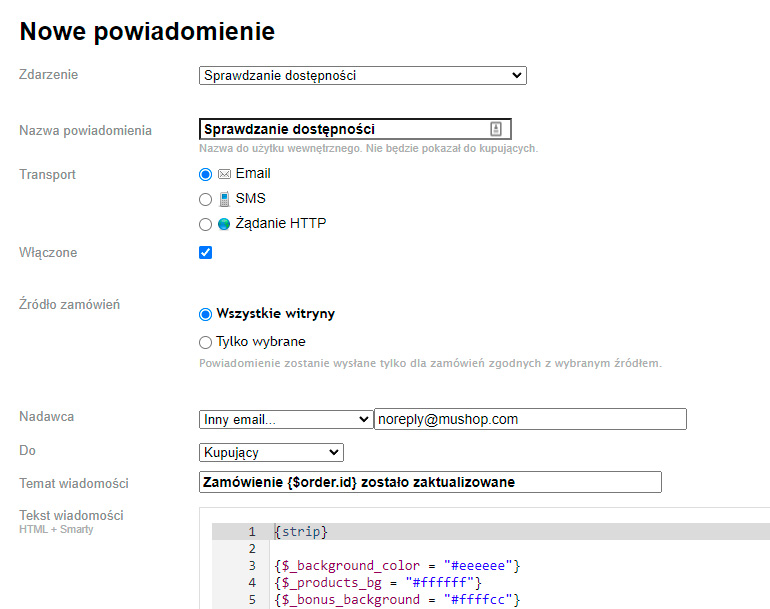
Event - select the one configured as the first action (in our case, "Check availability").
The rest is standard. You can use the following news text, for example:
1
2
3
4
5
6
7
8
9
10
11
12
13
14
15
16
17
<p>Welcome, {$customer.name|escape}!</p>
<p>Your order {$order.id} has been submitted for stock availability verification.<br/>
In the near future, our managers will check availability and change the order status to “To pay” (you will receive a notification to that effect at the email address you provided).<br/>Then you can pay for the order via your personal account</p><p>Link to order view - <a href="{$order_url}" target="_blank"><strong>{$order_url}</strong></a>
{if !empty($order.params.auth_pin)}<br>PIN: <strong>{$order.params.auth_pin}</strong>{/if}</p><p>Thank you for shopping at our store «{$wa->shop->settings("name")|escape}»!</p>
<p>--<br>
{$wa->shop->settings("name")|escape}<br><a href="mailto:{$wa->shop->settings("email")}">{$wa->shop->settings("email")}</a><br>
{$wa->shop->settings("phone")}<br></p>
Create a second notification.
Event - select the second action we already configured (in our case, "Checked"). The news text could be, for example:
1
2
3
4
5
6
7
8
9
10
11
12
13
14
15
16
17
18
19
20
21
22
23
24
25
26
27
28
29
30
31
32
33
34
35
36
37
38
39
40
41
42
43
44
45
46
47
48
49
50
51
52
53
54
55
56
57
58
59
<p>Welcome, {$customer.name|escape}!</p>
<p>Order items <strong>{$order.id}</strong>:</p>
<table class="table">
<tr><th></th><th>Quantity</th>
<th>Total</th>
</tr>{$subtotal = 0}{foreach $order.items as $item}<tr><td>{$item.name|escape}{if !empty($item.download_link)}<a href="{$item.download_link}"><strong>Download</strong></a>{/if}</td><td class="align-center">x {$item.quantity}</td>
<td class="align-center">{wa_currency($item.price * $item.quantity, $order.currency)}</td>
</tr>{$subtotal = $subtotal + $item.price * $item.quantity}{/foreach}<tr class="no-border thin">
<td colspan="2" class="align-right">Subtotal</td>
<td class="align-center">{wa_currency($subtotal, $order.currency)}</td>
</tr><tr class="no-border thin">
<td colspan="2" class="align-right">Discount</td>
<td class="align-center">{wa_currency($order.discount, $order.currency)}</td>
</tr><tr class="no-border thin">
<td colspan="2" class="align-right">Delivery</td>
<td class="align-center">{wa_currency($order.shipping, $order.currency)}</td>
</tr><tr class="no-border thin">
<td colspan="2" class="align-right">Tax</td>
<td class="align-center">{wa_currency($order.tax, $order.currency)}</td>
</tr><tr class="no-border thin large">
<td colspan="2" class="align-right"><b>Total</b></td>
<td class="align-center bold">{wa_currency($order.total, $order.currency)}</td>
</tr></table><p>verified and available. The order has been moved to the status <span style="font-weight: bold; color: red;">{$status}</span></p>
<p>Now you can pay for it via your personal account:<br/>
<a href="{$order_url}" target="_blank"><strong>{$order_url}</strong></a>
{if !empty($order.params.auth_pin)}<br>PIN: <strong>{$order.params.auth_pin}</strong>{/if}</p><h4>Please note!</h4>
<p>The goods for the order are reserved for three days from receipt of this letter. If you do not make the payment within this time, the order will be canceled.</p>
<p>To speed up delivery, please inform us about the payment via the email address provided in the signature</p>
<p>Thank you for shopping at our store «{$wa->shop->settings("name")|escape}»!</p>
<p>--<br>
{$wa->shop->settings("name")|escape}<br><a href="mailto:{$wa->shop->settings("email")}">{$wa->shop->settings("email")}</a><br>
{$wa->shop->settings("phone")}<br></p>
Warning!!! Don't forget to include the saved notifications!!!
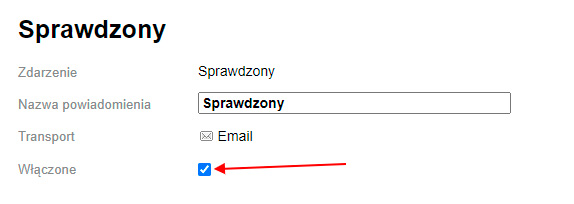
- Add the "Verified" action for the order
(Shop->Settings->Order statuses->required status (in our case "Checking availability"))
Check the box next to the required action (in our case "Verified"):
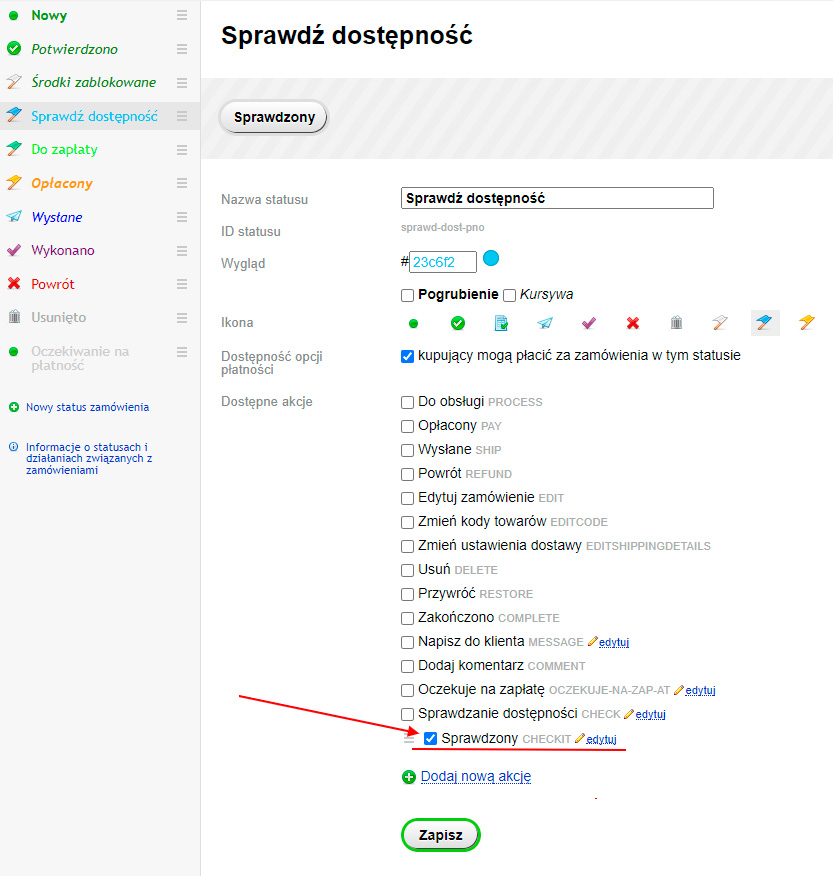
Save.
Plugin configuration.
- Enable/Disable plugin – enables or disables the plugin
- Payment options for which plugin works - selection of payment methods covered by plugins.
For example, you can enable it for methods that allow remote payments (Visa, MasterCard, Bitcoin, etc.) and exclude those where the customer pays in cash. Orders with selected payment methods will be moved to the status set in Settingss. Orders with other methods will remain in the "New" state. - Order status for verification – the status to which the order is moved after being submitted for verification
- Event for sending notification – the event triggered during the automatic transition of a created order to the status specified in the "Order status for verification" setting. The event is used to send a "Notification" to the customer that their order is being checked for product availability.
- Replacement template – a template (HTML + text) displayed instead of the payment button.