Discover everything our e-commerce platform has to offer - from setting up a store, through marketing and integrations, to security, technical support, and design. Find out how to grow your online sales with Web Systems Pro.
Expand your store’s capabilities with ready-made integrations - online payments, wholesalers, shipping, SEO, marketing, CRM, notifications, and more. All designed to help you operate faster, more effectively, and more conveniently.
Searching for support for your online store? Visit our blog, knowledge base, forum, and expert articles. Here you’ll find instructions, e-commerce tips, and answers to frequently asked questions - everything you need to run a successful online store.
We strive to explain in simple terms how our theme templates work - including descriptions of their features and settings. In addition, we regularly update and expand our instructions to ensure they remain clear and helpful at every stage of using the the
A discount (or bonuses) can be awarded in various ways. The most important thing you need to understand:
To set a discount (bonuses) for products, you must create a discount rule.
In the rest of the article, we will only talk about discounts, as all settings for bonuses are identical.
In the discount rule, you need to specify how the fee will be calculated:
using a discount rule
using a product field
Setting discounts (bonuses) using a rule
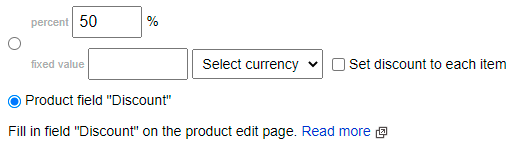
When creating a discount rule, you can specify the discount (bonuses) as a percentage or a fixed value:
Note that for a fixed value, there is a setting Set discount for each item.
If you do not check this field, the discount will be associated with the entire order, not with each product.
Assume you have chosen a discount of 3$ and have not checked this field. After purchasing 5 products, the discount will not be 15$, but 3$.
Setting discounts (bonuses) using a product field
You can set discounts (bonuses) in the product itself. To do this, in the discount rule, select the value Product field "Discount":
Specify conditions if necessary. As a target, for example, select All products meeting the conditions.
Next, in the administrative section, open the product for which you want to set a discount.
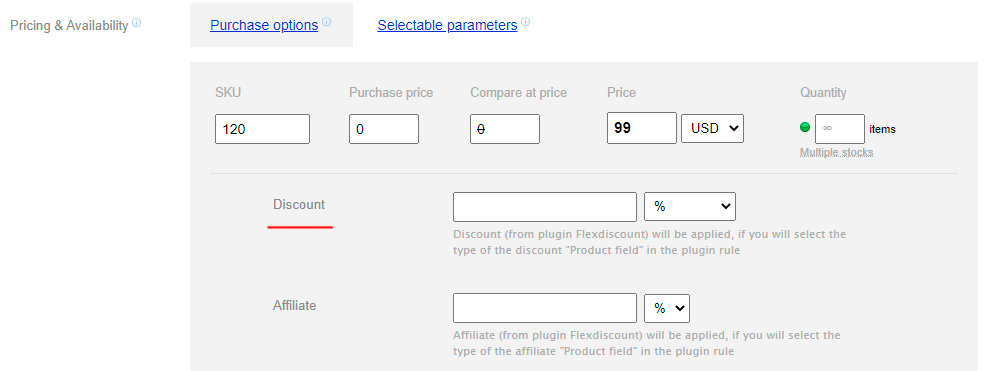
Inside the product, there is a general field Discounts (Bonuses):
You can specify the value as a percentage or in currency.
Additionally, the discount can be set individually for each sku. To do this, go to the sku settings and find the same field Discount.
Consider the specifics of filling out the Discount (Bonuses) fields for sku.
1) If the field remains empty, then the general discount value specified for the entire product will be applied.
2) If you enter 0, the discount for that sku will not be applied, despite the general value specified for the entire product.
3) If you enter a discount value and also a general discount value, then only the discount for that set will be applied.
The for all sku field, which is next to the general discount field, allows for quick changes to discounts for all sku. After saving, the discount values for all sku will be changed.
Import/Export
You can change discounts/bonuses for products using CSV import if you use Product field.
Fields in the CSV file:
    flexdiscount_item_discount - discount value
    flexdiscount_discount_currency - % or discount currency
    flexdiscount_item_affiliate - affiliate value
    flexdiscount_affiliate_currency - % or empty value
These fields are available for both the product (table shop_product) and the sku (table shop_product_skus).
Discounted price on the carta page
If you want the discounted price to appear on the page carta, use a special construction in the theme cart.html
/** Get data about the product
*
* @param array $item - Product data
* @param string $field - Field, you want to get
* Available values:
* - 'price' - price with discount,
* - 'compare_price' - compare price,
* - 'discount' - discount value
*
* array['class'] string Additional CSS to the block
* array['html_before'] string HTML code before the block
* array['html_after'] string HTML code after the block
* array['multiply'] int Multiply value or not. Available values: 0or1
* array['ruble_sign'] string Ruble setting. Available values: 'symbol' - ruble sign, 'string' - rub sign.
* array['return_clear_value'] int Get only the value without html-wrap. Available values: 0or1.
* If you set 1, than block will be static. HTML before/after will be ignored
* array['ignore_hide'] int Ignore default hiding behaviour. Available values: 0or1
* By default, if compare price or discount are empty, than block should be hidden.
* array['tag'] string Tag of the block
* array['remove_loader'] int Remove block loader. Available values: 0or1
* @param array $params - Array of params (see above)
* $params = [
* 'class' => '',
* 'html_before' => '',
* 'html_after' => '',
* 'multiply' => 1,
* 'ruble_sign' => 'string',
* 'return_clear_value' => 0,
* 'ignore_hide' => 0,
* 'tag' => 'span',
* 'remove_loader' => 0
* ]
* @return string
*/
{$wa->shop->flexdiscountPlugin->cartItem($item, $field, $params)}
By default app Shopy-Script changes prices on the carta. To prevent the replacement of the discounted price, do not insert the above constructions into blocks of the class: item-total or s-product-total. You can also remove these classes.
Plugin Optimization
This guide is intended for people with basic knowledge of HTML, Smarty, PHP. The creator of plugins does not perform free optimization and profiling work.
Plugin "Flexdiscount" uses the hook frontend_products to change product prices. This hook, due to its functions, is very often called in theme and plugin projects. For example, in product collections, total price, total discount. Some of these dialogs can be optimized.
Here are a few conclusions that activate discount calculations:
$collection = new shopProductsCollection($hash)
(new shopCart())->total()
(new shopCart())->discount()
(new shopCart())->items()
(new shopCart())->getItem($id)
(new shopCart())->getItemTotal($id)
Each clearing of the session shop/cart will also lower the calculation in order to update the information in the queries above.
Below you will find a list of recommendations regarding the optimization of plugins "Flexdiscount", theme projects and external plugins. Take care of the user's convenience.
Optimization recommendations
1) Disable or remove the plugin.
This option will significantly improve performance, as plugin will no longer use server resources to create discount systems.
2) Disable the setting "Change product prices to discount prices".
This setting uses the hook frontend_products and is the most resource-intensive.
If you stop here and decide to disable it, all the recommendations below will not be relevant to you.
3) "Ignore price changes in plugin below".
This setting is located under the setting "Change product prices to discount prices". It disables requests from plugins through the hook frontend_products.
Disable (check the checkboxes) as many plugins as possible. Pay attention to the sum of discounts for products and orders. If you get incorrect calculations, it means you should not disable plugins.
Theme projects
4) Pay attention to requests in loops.
This is strictly forbidden!
If you find a similar construction in the theme, change it immediately:
{foreach ... as ...}
    ...
    {$products = $wa->shop->products(...)}
    ...
{/foreach}
It is better to take it out of the loop and use only the variable $products inside the loop:
{$products = $wa->shop->products(...)}
{foreach ... as ...}
    ...
{/foreach}
5) Reduce the number of calls to the order sum, order discount and product collection.
You can find this construction really often in themes:
{$wa->shop->cart->total()}}
        or
{$wa->shop->cart->discount()}}
        or
{$wa->shop->cart->items()}}
        or
{$wa->shop->products(...)}}
Use variables instead of many calls:
{$total = $wa->shop->cart->total()}
    or
{$discount = $wa->shop->cart->discount()}
    or
{$items = $wa->shop->cart->items()}
    or
{$products = $wa->shop->products(...)}
6) Optimization of the product collection.
Some calls {$wa->shop->products(...)} can be executed without obtaining current information about discounts. By default, each call calculates discounts for products. If you only need product features or its name, disable discount calculation.
Use the option no_plugins_frontend_products. For example, such a construct:
In discount rules, instead of conditions with the "not equal" operator (for conditions from the Product group), it is better to create a deny rule.
This recommendation is important if the number of products with the "equal" operator will be less than with the "not equal" operator.
Plugin allows you to get a full report of all connections. To do this, you must perform profiling. Based on the profiling report, it will be clear which recommendation should be applied and where.
Profiling
The instruction is intended for people with basic knowledge of HTML, Smarty, PHP. The creator of plugins does not perform free work related to optimization and profiling.
The profiling report allows you to detect all sources of Flexdiscount calls. This information will help you find all low-performance areas. By following the optimization recommendations, you will reduce the server load.
How to perform profiling?
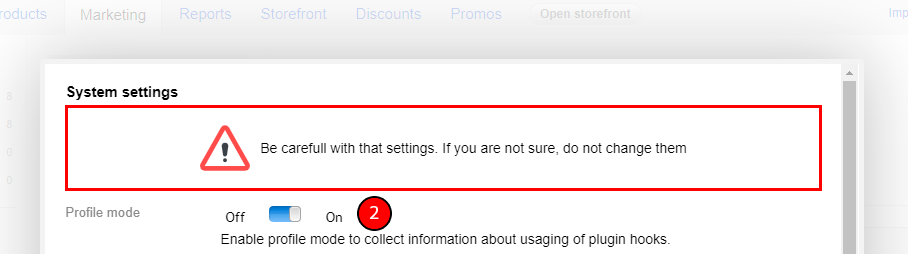
1) Open the plugins settings and enable the profiling mode.
2) If necessary, edit the settings and save them.
3) Create a specific cookie in the browser.
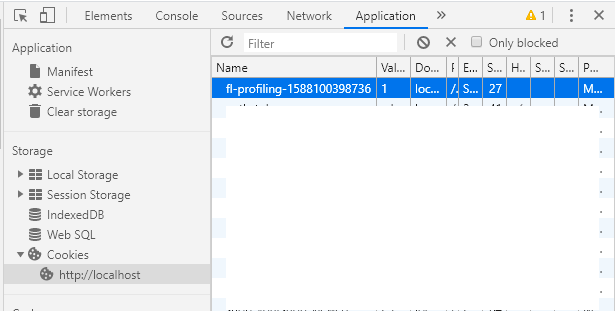
You must create a cookie named fl-profiling-1588100398736.
Open the page where you want to perform profiling.
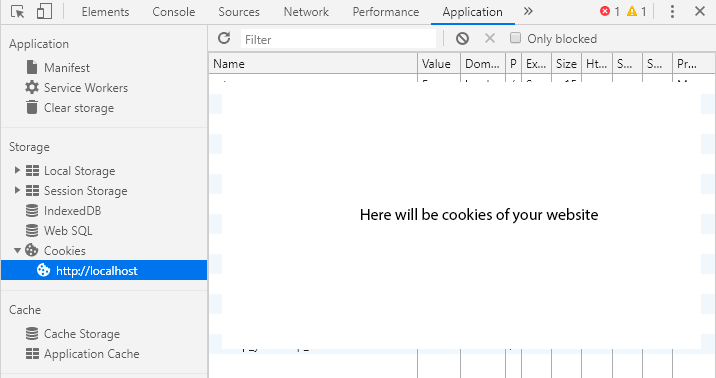
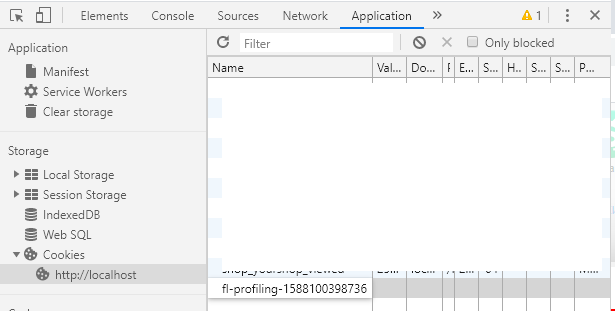
Open the developer tools in Chrome using the F12 key on the keyboard. Select the Application tab. In the sidebar, open Cookies and select your domain.
To create a cookie, you need to double-click on the empty white field located under all cookies. Then you will be able to specify the cookie name.
Next, press TAB and enter the value "1".
4) Reload the page where you want to perform profiling.
5) Open the Logs application and find the log file flexdiscount.profile.log.
We recommend deleting it after each profiling session if you do not want to be confused by the data.
Decoding the profile report
The plugin can be called from 3 sources:
Plugins
Methods
Themes
Profiling hooks:
frontend_products
order_calculate_discount
Plugin has 3 tracking points:
Before plugin validation Called before plugin validation. This determines whether plugin can continue processing or not. You can estimate how many claims are received by plugins.
After plugin validation Called after plugins validation. You can estimate how many plugins were passed for validation.
Calculation The most important point. Called after the discount is calculated.
Let's look at the report.
1) The first lines contain information about the time of the call and the page that was profiled:
In our case, it is the product page.
2) Next, we can see the hook that was called, the number of calls that passed through the points, and the time spent on processing.
Here you can estimate the main load on plugins.
We see that there were 3 queries for discount calculation (the "Calculation" point). It took 0.04 sec.
6.3419342041016E-5. It is 6.34*10-5 sec.
This is a good result. There is nothing to optimize here. But let's continue.
Next comes the description of the sources.
The output is represented by a tree structure:
"-" one dash. The source of the request.
"--" two dashes. The tracking point through which the request passed.
.
"---" three dashes. Service header (Connection Statistics), after which the connection history (connection) is detailed.
"----" four dashes. Service information. Connection number and time spent on its handling. Then the connection history is detailed.
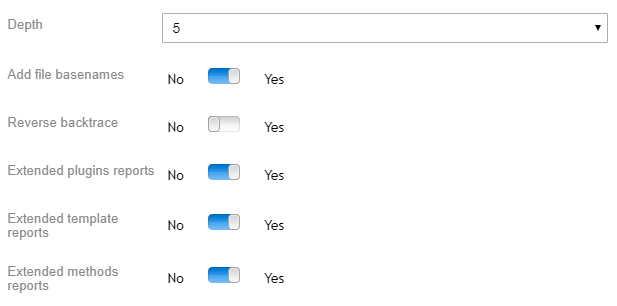
"-----" five dashes. The connection that started the plugin to work at the tracking point. The number of such connections depends on the "Depth" setting in the profile settings. It may happen that there are fewer results. This occurs when the connection history was small.
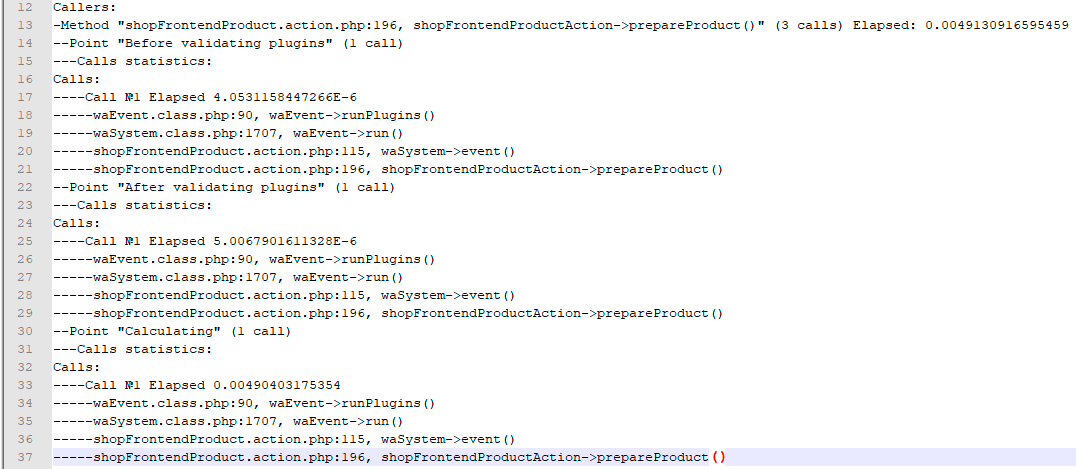
Consider part of the report.
3)
We can conclude that the call came from the method shopFrontendProductAction->prepareProduct(). This is a system method of the Shopy-Script application. We cannot change it.
It passed through all points only once. It was preceded by a chain of calls starting from waEvent->runPlugins().
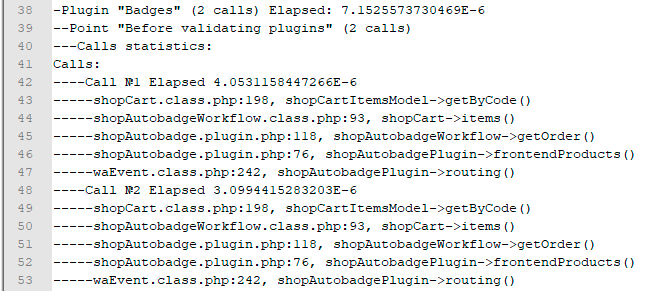
4)
Plugin Badges was the next source. It tried to call the plugin twice, but did not bypass the first point. Plugin Flexdiscount filtered it out.
It is visible that the main reason for the invocation was the method shopCartItemsModel->getByCode() using the method shopCart->items(), which was invoked by the Badges plugin. If we refer to the article Optimization, on the list of queries we will find the method: (new shopCart())->items() - which activates the calculation of discounts.
5)
The next source is the plugin Flexdiscount. We will skip this part of the report, because the calls are system calls.
6)
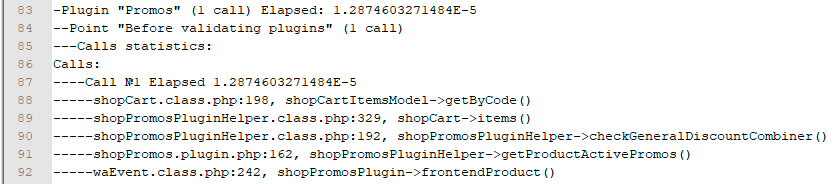
Plugin Promos was also filtered.
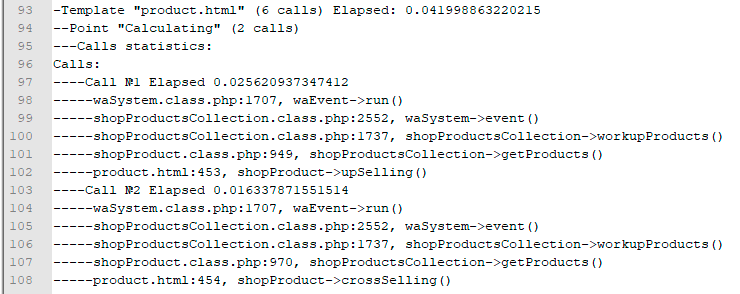
7) Then we will only consider the point Calculation, because it is the most important.
Plugin was called twice from the product.html theme:
when displaying the list of recommended products: shopProduct->upSelling()
when retrieving the list of cross-selling products: shopProduct->crossSelling()
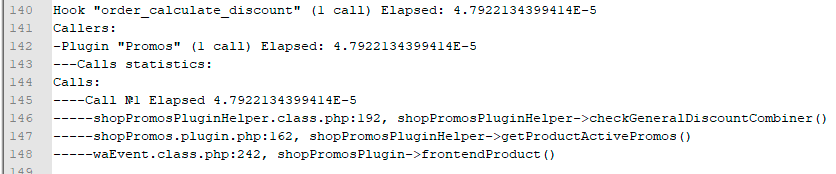
The hook order_calculate_discount (main hook for calculating discounts) was called only once by the Promos plugin. It took 4.79*10-5 sec. All subsequent calls to this hook were not registered, because the plugin Flexdiscount buffered the results and did not perform any calculations.
In this way, we have seen all the calls to plugins discount. We can only disable the setting "Change product prices to discount prices" to optimize the plugin. This means that there will be no calls from 2 to 7 paragraph. Only the call order_calculate_discount will remain. How necessary this is depends on you.
Discounted price in notifications
In notifications sent to users after successfully proceeding to checkout, we can display the discounted prices of products.
Let's look at the notification "Order Placed (Customer)". Go to the page
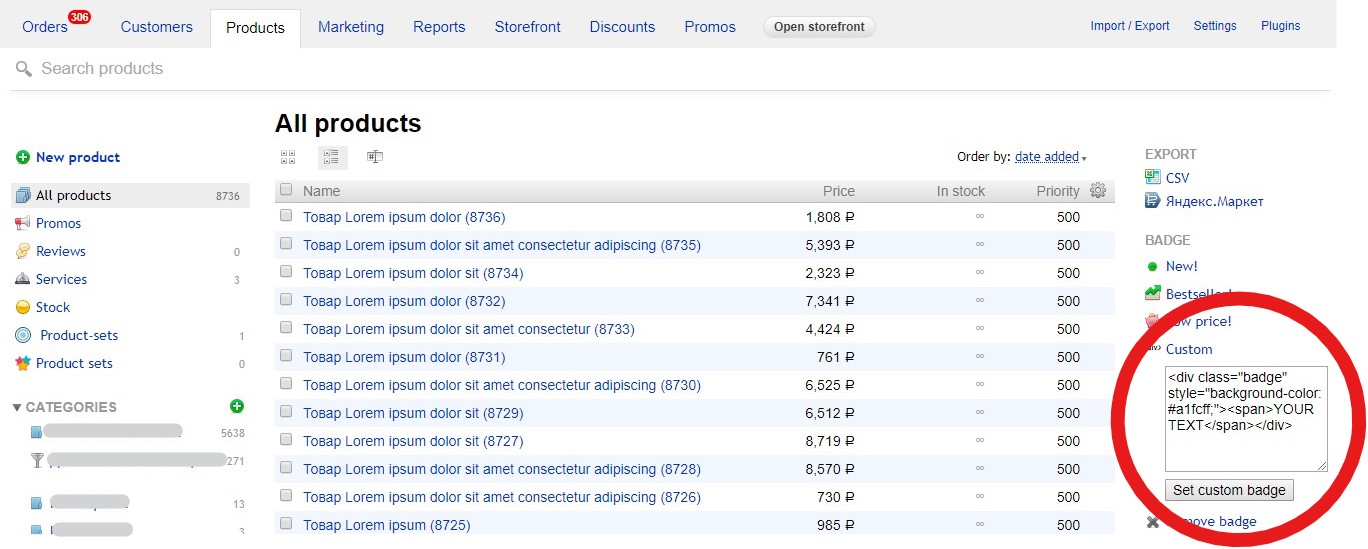
For each discount rule, you can set a badge that will appear on the catalog or product page.
The starting point depends on the theme project, as plugin uses standard functionality to display badges.
How can I pull out a badge?
Enable the option "Change product prices to discount prices".
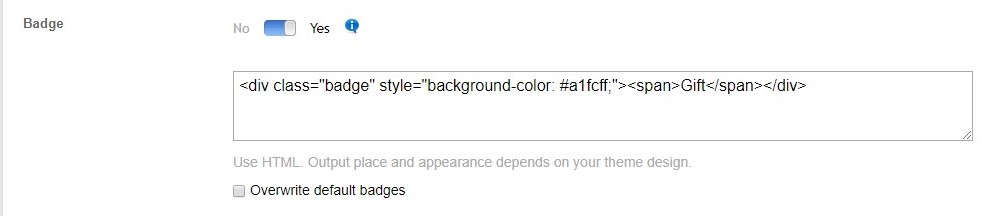
Copy the text "Custom badge". Open "Shop -> Products". In the right sidebar, find "Badge - Custom". Copy the text
Paste the badge text in any promotion
After completing all the steps, the badges will appear on the catalog and product pages.
Discount limit on products
You can limit the discount for each product individually or generally.
On the discount page, you will find the setting "Discount limit on product".
On the discounts page, you can find the setting "Discount limit on product". Activate it.
General
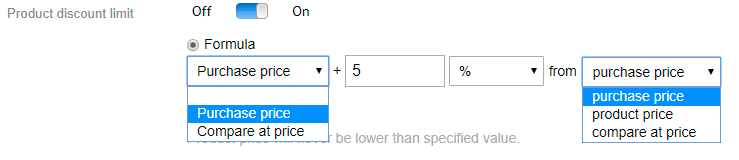
Select the "Formula" field. You will see how the discounted price will be limited.
Let's read the formula: The price of the product with the discount plugin will never be lower than the value "Purchase price + 5% of the purchase price".
Let's assume we have a product:
Price - $1000, Purchase price (PP) - $500, Discount - 60% of the product price.
We assume that the discount will be $600, and the product price will be $400.
According to the restrictions, the discounted product price will be $525.
Formula = PP + 5%*PP = 500 + 500 * 0.05 = $525 - the product price will never be lower than the specified value.
Individual discount limit
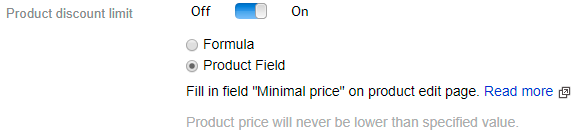
Select the "Product field".
Go to the Products tab, select any product, try to edit it. In the "Basic data" tab, you will find the "Minimum price" field.
Enter the value, make sure to check "for all sku", click save.
The minimum price will be set for each sku.
You can customize each sku.
NOTE! Plugin uses only sku values. Use the product field with the minimum price only to specify the value for all sku.
Import/Export
You can use import/export to change the minimum price value.
For sku use the fields:
- flexdiscount_minimal_discount_price - minimum price value. Must be numeric. - flexdiscount_minimal_discount_currency - currency. 3 symbols.
Displaying available discounts using deny rules
Important! This setting does not affect deny rules. A product that should not have a discount will not receive it in any settings. This article is only about displaying the Available discounts block when using deny rules.
When using deny rules, you may find the Available discounts block in products that should not have discounts. On the cart page, these products will not have any discounts. Depending on your discount policy, this may or may not be appropriate.
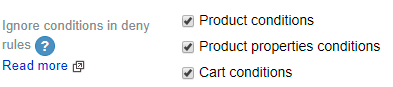
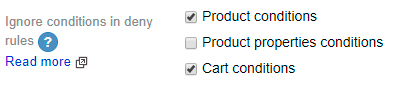
To determine when to display the Available discounts block and when not to, there is a setting "Ignore conditions in deny rules".
Shop - Marketing - Discounts - Flexdiscount
Using this setting, you can choose which conditions to ignore in deny rules when showing available discounts. There are 3 groups of conditions:
Product conditions
Product properties conditions
cart conditions
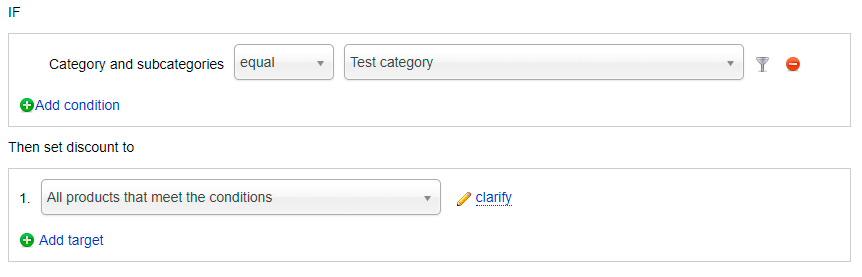
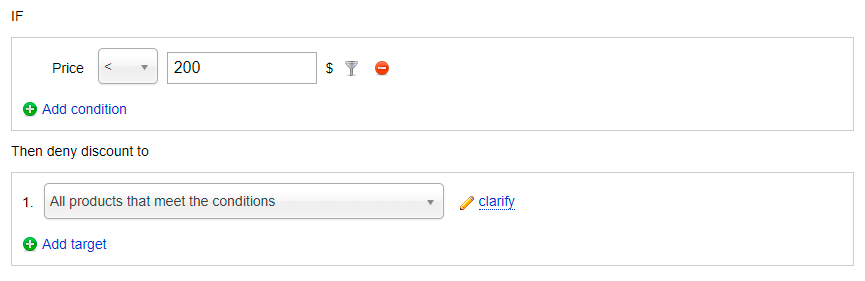
See example.
Discount rule:
Deny rule:
The deny rule has a condition from the "Product properties" group (price condition).
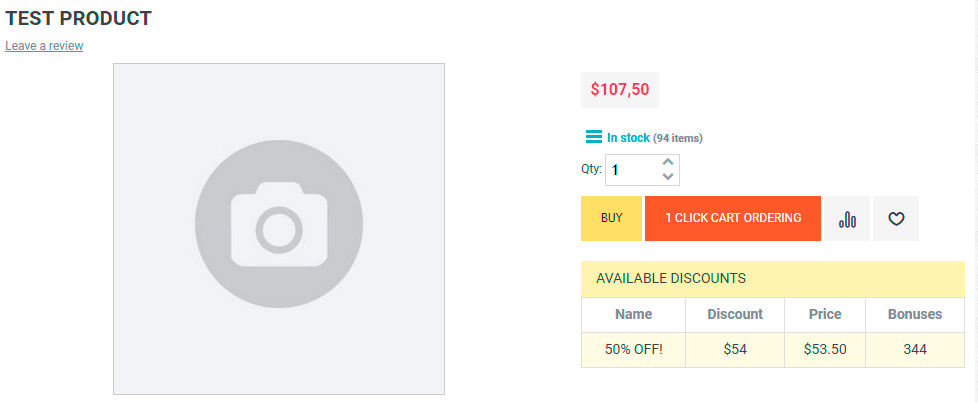
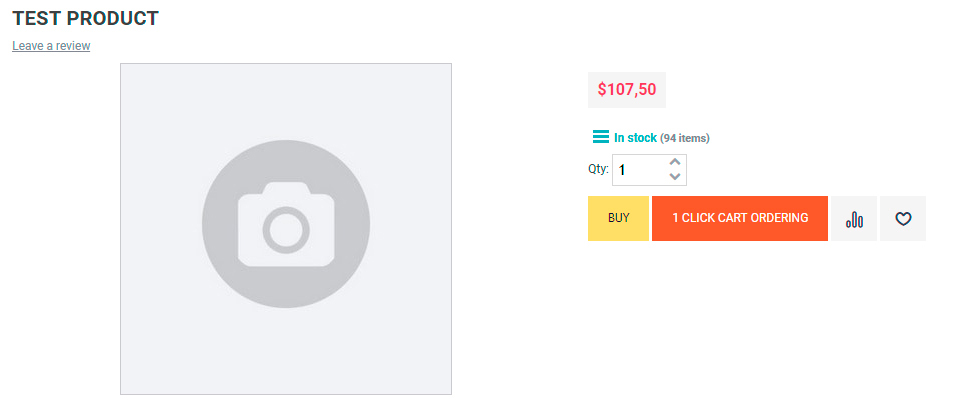
Thanks to these settings, the product page will look similar to this:
The product will not receive any discount, but it will have the Available discounts block.
Change the settings
Product properties will not be ignored. In this case, the product will not have the Available discounts block, because the product will not pass the price validation.
How to create a package discount?
How does it work?
Select the type of products that will be in the package and specify their quantity.
Plugin filters products carta and tries to gather the package. If the products are sufficient to create the package, then plugin will count the package quantity.
Depending on the specified goals, discounts will be set based on the number of packages.
How to create a package?
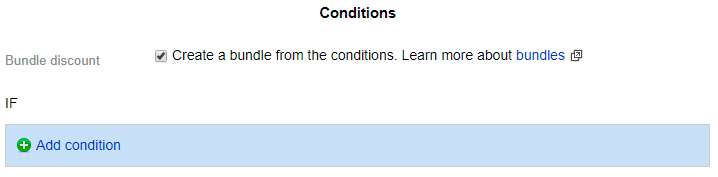
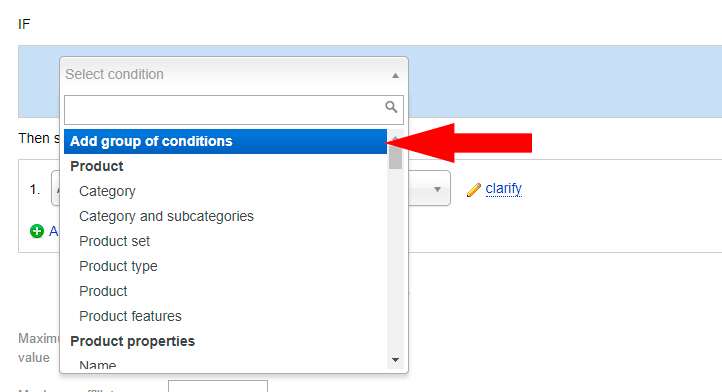
Select that you intend to create a package from conditions.
Notice that the background color of the condition block has changed. This is done for your convenience to understand that you are working with packages.
- binding mode is active:
- Shared mode:
Some packages are highlighted.
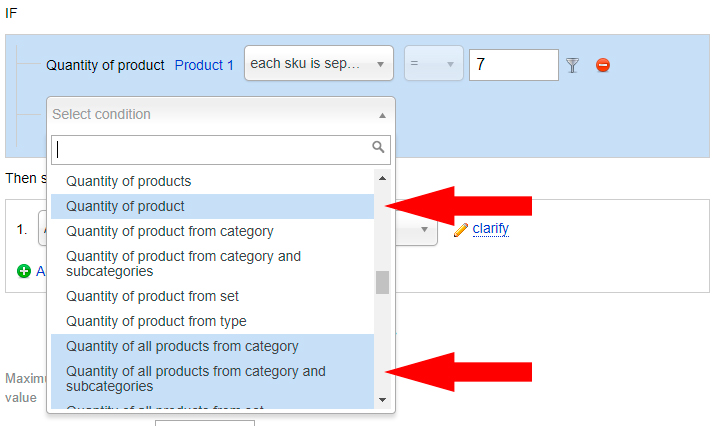
Only highlighted conditions facilitate filtering products for the package. The rest are auxiliary.
List of conditions that must be met by packages:
Quantity of product (you need to specify which product).
Quantity of all products from the category.
Quantity of all products from the category and subcategory.
Quantity of all products from the set.
Quantity of all products from the type.
Quantity of products with features.
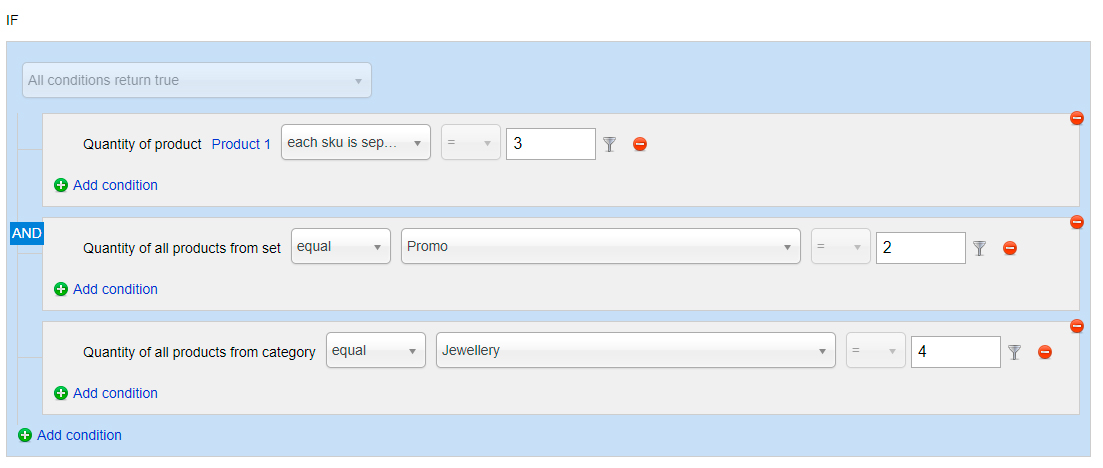
Each new product from the package must be created in a separate group of conditions.
In the above example, the set consists of 3 units of product 1, 2 units from the Promo set, 4 units from the Jewelry category.
Examples
Example 1
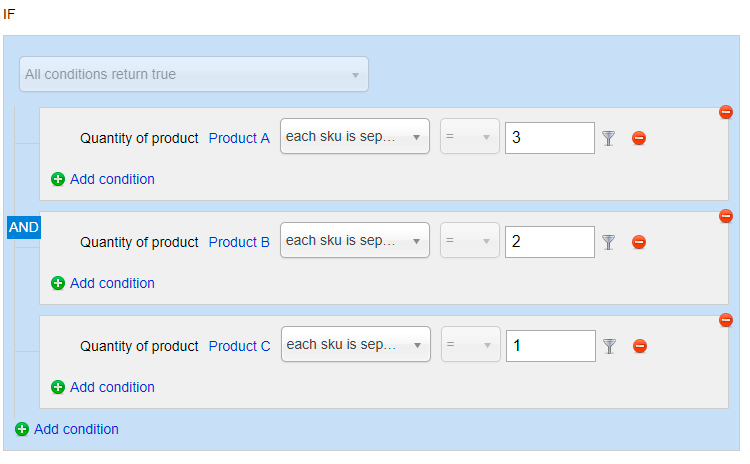
Imagine that our package should consist of the following structure: product A - 3 units, product B - 2 units, product C - 1 unit. Briefly: 3A + 2B + 1C
Consider the situation when:
a) The discount is set only for the package.
b) The discount is set for a product that is not included in the package.
Create a discount rule
Imagine that cart consists of products: 7A + 6B + 3C + 5D
How many packages are in cart? The correct answer is 2. Because 2 * (3A + 2B + 1C) = 6A + 4B + 2C Why not 3 packages? Because we need 9 units of product A, which is impossible in our case.
What will the discount be? a) If the discount is set only for the package. In this case, the discount will be set for products 6A + 4B + 2C b) If the discount is set for a product that is not included in the package. In this case, the discount will be set for products 2D, because there are 2 packages in cart.
Example 2
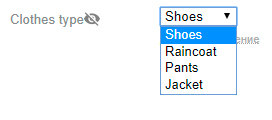
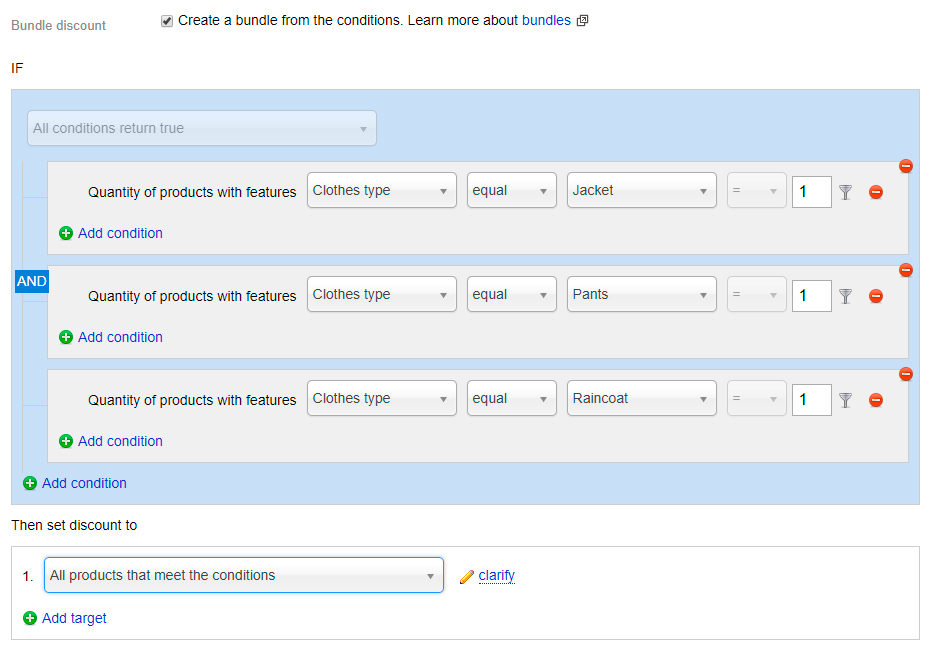
We need to set a discount on the package: Jacket, Pants, Raincoat. Some products are in the same categories, some are not. The only difference is the features of these products:
Discount rule:
Example 3
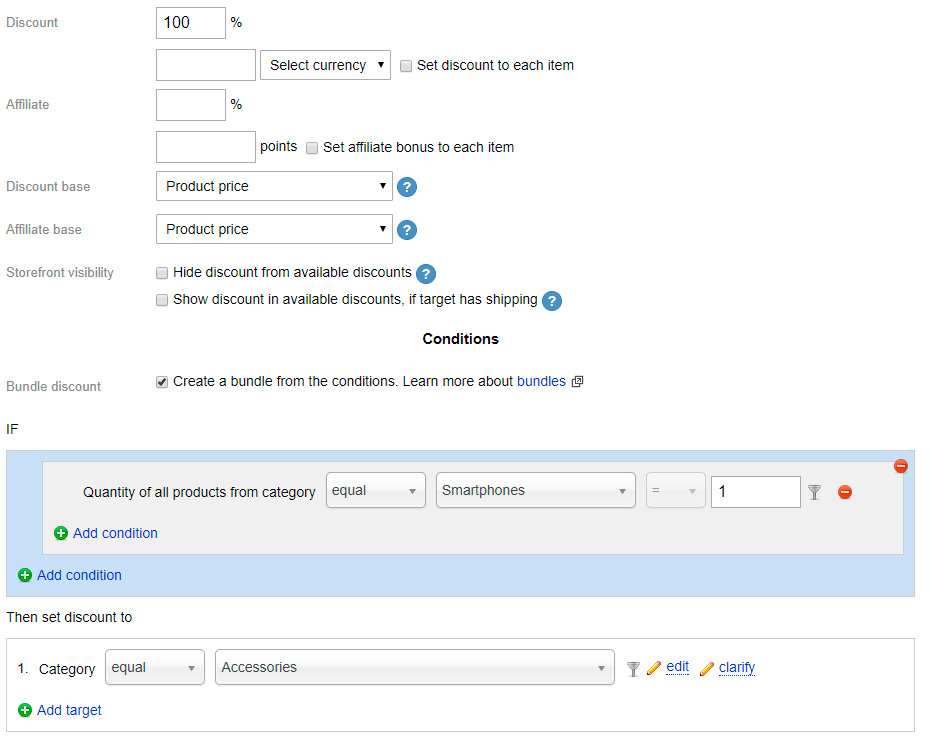
Buy any smartphone, and you will receive any accessories as a gift. Buy 1 smartphone - receive 1 accessory for free, buy 2 smartphones - receive 2 accessories for free.
Discount rule:
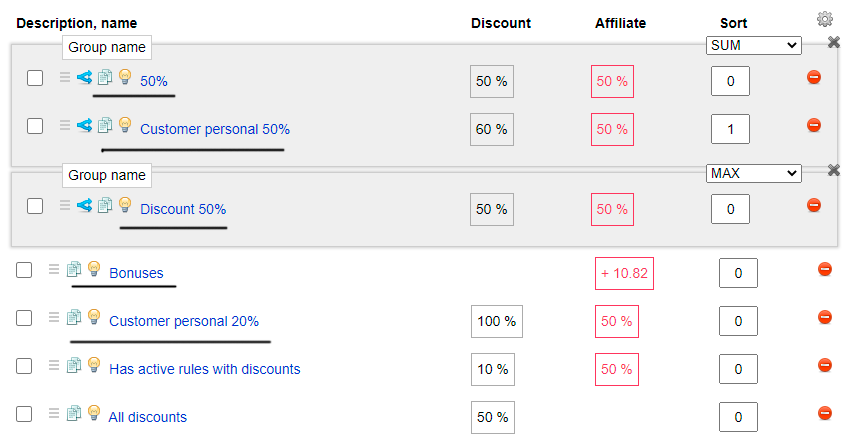
Character of conditions "Does it have active rules with discounts/affiliates?"
Conditions Has active discount rules and Has active affiliate rules check the rules that are before them.
Rule checking method
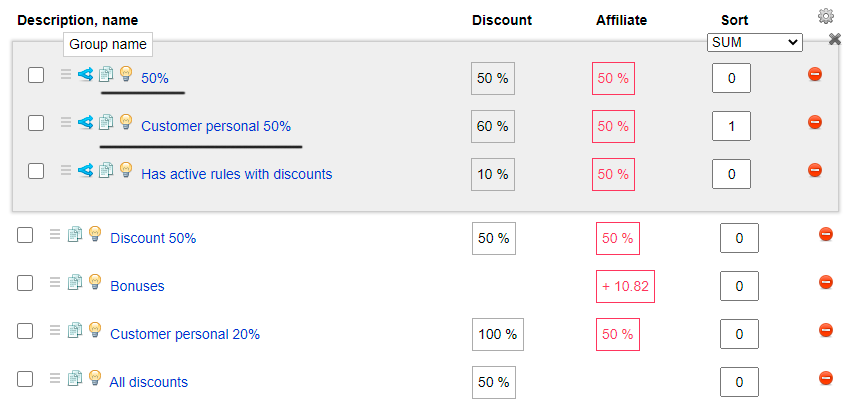
The above image highlights the rules that will be checked for discounts.
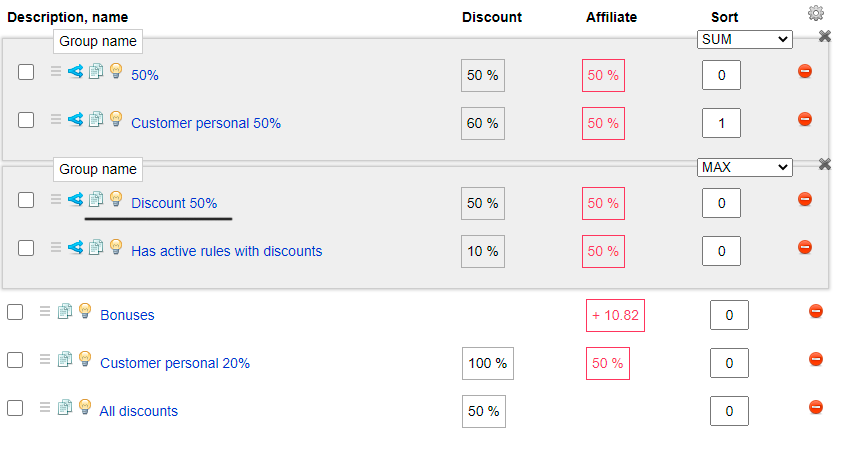
If you create another group:
In case of moving the rule outside the group
Basic points:
1) If a rule is in a group, its checking range is limited to that group.
2) If a rule is not in any group, all other rules that are before it, including groups, are checked.
What is checked?
If a discount specified in the fields is applied to products, it is considered that there is an active discount rule.
Important, all rules should have in goals All products that meet the conditions. Move all conditions from goals to the appropriate blocks
Everything works the same way with bonuses.
How to embed the coupon generator in Mailer?
Create a coupon generator.
Create a block flexdiscount.mailer in Site -> Blocks: