

Guide o wtyczce "Inpost export"
Instructions for configuring data export from plugins with InPost API interface
To create access to ShipX API on your own, please follow the steps below:
1. Go to the Parcel Manager website https://manager.paczkomaty.pl/ or you can initially configure everything on the test site https://sandbox-manager.paczkomaty.pl/ (to do this, you need to enable "Test mode" in the plugins settings):

However, remember to change the token and organization ID after switching to a production account. The following instructions are identical for both test and production account configuration.
2. In the login window, enter your login and click: Log in
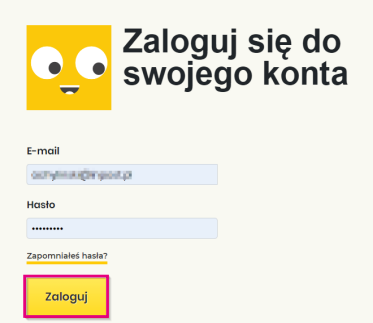
3. After logging into your account, go to the "My Account" tab:

4. In the menu below the "DATA" button verify that all company data has been correctly filled in.
Attention! Remember that to generate API access, both the company's address details and invoice details must be completed.
5. After verification, go to the new tab under the "API" button:
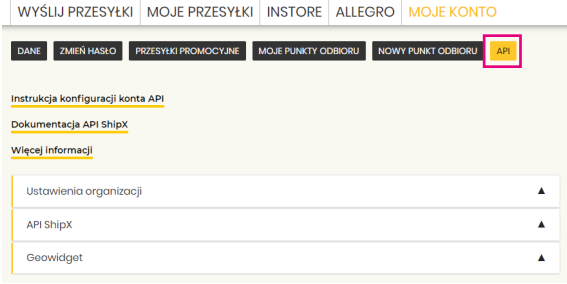
This section provides a completely new panel allowing management of access to API ShipX and Geowidget. For this plugins, we are only interested in the API ShipX token.
6. To generate new access to API ShipX, expand the API ShipX tab and click "Generate":
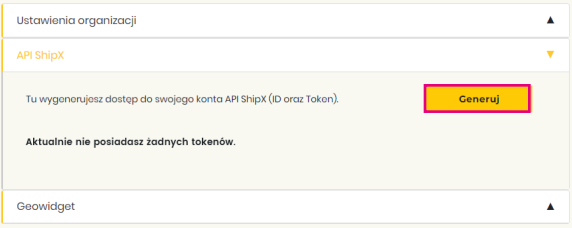
A new window will appear, allowing you to generate access, asking whether you have a courier contract customer number (the number can be found on the contract or obtained from your Account Manager):
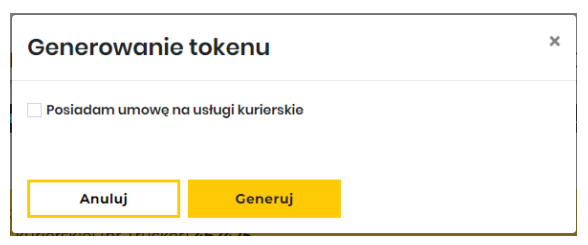
Attention! If you have a courier contract, check the checkbox and enter the customer number in the text field, then click "Generate".
The number can be found on the contract or obtained from your Account Manager.
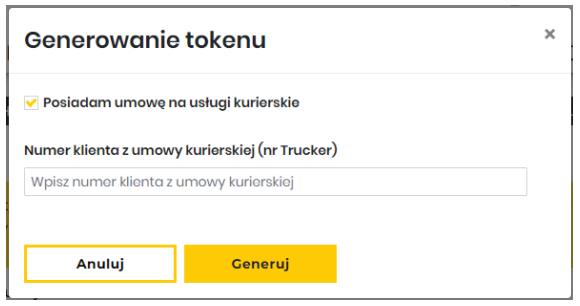
If access is to be generated only for parcel locker services, click the "Generate" button without entering additional data. The system will create API access based on the information in the "Data" tab.
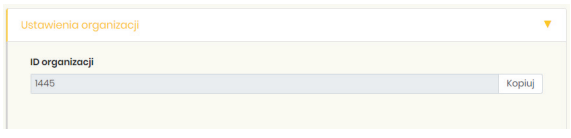
8. In the "Settings organization" tab, the "Organization ID" will appear:
9. In the "API ShipX" tab, the "Token" will appear. To copy it, click "Show token":
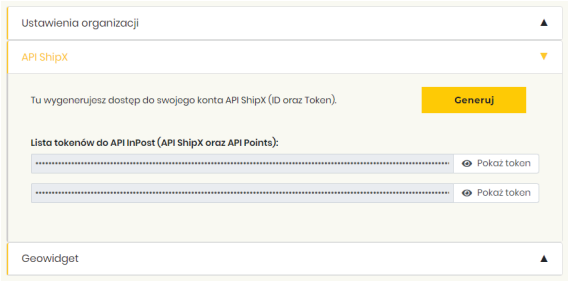
It is possible to generate up to 10 tokens, which will be displayed in the list.
10. The only remaining step is to copy the generated token and organization ID and paste them into the appropriate fields in the plugins settings:

and also fill in the other fields of the plugins:
