
Guide o wtyczce "Integration with AliExpress"
Full plugins usage guide
1. What is the purpose of plugins?
This module enables sending order information from Aliexpress marketplace orders to the website admin panel in the Shopy-Script application. Plugin requests order data at a set frequency and updates it in the Shopy-Script application if any changes occur. This allows convenient control over inventory levels and order stages by status.
In the order list, a marketplace icon and order number are displayed. Inside each order, there is an information block with additional useful details - order number, shipping and delivery date.

Does plugin send products to the Marketplace?
No, plugin does not send products to the Marketplace; you should use another solution for that.
Which fulfillment models does plugin support?
FBS Cainiao, other FBS providers, or self-fulfillment.
Is it possible to create logistics orders for FBS Cainiao?
This functionality is not available, and there are no development plans in this direction.
2. Installation and general settings
The plugin is installed as usual via the installer. To configure it, you will need access to your Aliexpress seller account. All settings are available within the plugin under the section Plugins -> "Integration with AliExpress".

Show Aliexpress order number in the general order list - allows enabling or disabling display of marketplace order numbers in the general order list.Show order status filter on the Orders tab - enables or disables the status filter display on the left side of the orders page.Show order shipping date filter on the Orders tab - allows enabling or disabling the shipping date filter on the left side of the orders page.Debug Mode - when enabled, many incoming and outgoing requests and responses will be logged in the site's log files. This can be helpful when troubleshooting issues.
3. Store profiles
To work with multiple stores, plugin includes a profile feature. For each store, you can set individual conditions. Add a new profile by clicking the green plus sign.

You will be prompted to enter a profile name and select a working model:

Don't forget to check the box next to "Active profile" to ensure orders are delivered to the admin panel.
4. Settings settings

4.1. Sales channel
In this field, you can enter the name of the sales channel that will be displayed in the order list. It will be different for each profile. In the future, it will be convenient to filter orders by this value.

4.2. Product matching ID
In this section, you must select what exactly you have in the product's SKU ID (SKU CODE) field on AliExpress to match this value with products in the store (to find products in the store). It could be: product ID / SKU ID / "Article code" / SKU ID + s + SKU ID.

More information about them:
Product ID and SKU ID are system values in Shopy-Script application. They are generated when a product is created and never change.
Product ID
Displayed on the product edit page:

SKU ID
Displayed when editing SKUs:

Article code
This is an arbitrary value that can be entered during product editing:

Product ID + s + SKU ID
This format is used when exporting products via plugins Yandex.Market. In this case, the offerID for SKUs is used, for example: 1234s4567. If the product has no SKUs, only the product ID is used - 1234.
The selected values must match those already uploaded to AliExpress.
4.3. Shipping and payment methods to be selected in the order
This setting allows you to specify the internal shipping and payment methods that will be selected when creating an order in the admin panel. This may be necessary for integration with other systems. If this field is left empty in the order, it may cause errors during synchronization with those platforms. This step is not mandatory; empty fields are not critical for most stores.

4.4. Add order number to comment
When this option is enabled, the AliExpress marketplace order number will be added to the order comment. This may be useful for forwarding to other systems or for printing.

4.5. Adding the shipping date to the comment
If this option is enabled, the shipping date will be added to the order comment. This can be useful when transferring data to other systems or for printing purposes.

5. Authorization (Global API)
1. Obtaining access keys for the Global API.

To obtain access keys for your AliExpress seller account, you need to register your "API application", which will give you an individual limit of 1 million requests per day, and your access token will remain valid for 1 year.
To register your "API application", please refer to this guide.
2. Obtaining the access token for the Global API.
Authorization is required to access your store data on AliExpress. To do this, click this link in a new tab and log in to your AliExpress seller account:
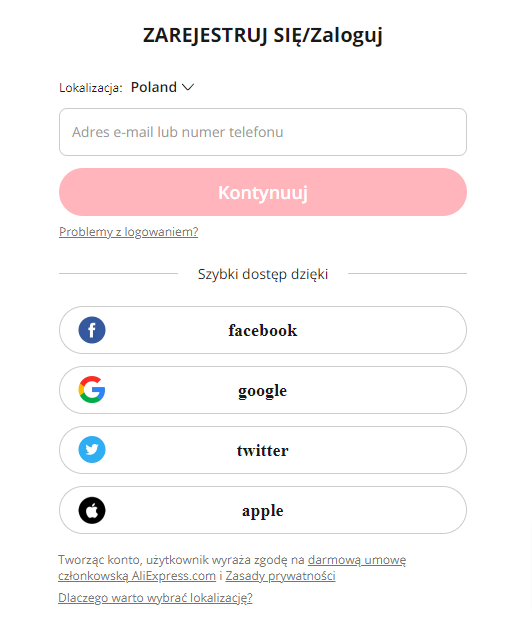
After entering your username and password, you will see an English message authorizing the "Integration with AliExpress" plugin:

Click the "Authorize" button. This will redirect you to a page displaying the "Authorization Code":

Copy it by clicking the appropriate icon. Return to your plugins settings, paste the code into the "Authorization Code" field, and click "Obtain Token":

If the code is correct, the token code and its validity period will appear below:

Note! According to AliExpress API rules, the token remains valid for 1 year if you are using the "self-developer" application.
6. Orders
6.1. Synchronization start date
From this date onward, all orders placed on that day and later will be sent to the site's admin panel. By default, this is the application installation date. You can select any other date.

6.2. Automatic order updates
The way the Aliexpress API works does not involve sending any data to the store. Shop must constantly check Aliexpress for any changes in orders.
You can perform this check using a one-time script launched via the "Receive orders" button, or configure regular automatic execution of commands using a CRON schedule in the "Client Center" of Web Systems Pro.
How to configure CRON?
Copy the CRON command from the application settings:

Add the task to your website's CRON schedule. Read more about how to add a CRON command here.
7. Stock levels

In this section, you can set up regular sending of current product availability to AliExpress.
7.1. Product selection
In this section, you can select the group of products whose availability will be determined for this store. These can be categories / lists / product types. If AliExpress requests availability for a product not among the selected items, no stock information will be sent for it. Only the selected product list will be considered when sending outgoing stock updates.

7.2. Warehouse selection
In this section, you can select the warehouses that will be used to determine product availability for this store.

When the option "Upon order creation, deduct from the same warehouses" is enabled, products will be deducted exactly from the warehouses selected in this section when an order is created.
7.3. Settings availability response
In this section, you can specify any custom "in stock" value instead of real availability. When sending stock levels via the API to AliExpress, the actual availability will be replaced with the specified values. For example, instead of 5 you can send 0. Or, if a product's availability is "unlimited" but you know you cannot sell more than 30 units, set inf = 30.

7.4. Sending stocks
This settings section is responsible for independent stock sending to AliExpress.
Two methods are possible:
- Manual sending by clicking the "Update now" button. Do not close the page until the process completes.
- Automatic regular sending using a CRON schedule. Copy the command and add it to your site's CRON.

Note: due to AliExpress API limitations, the stock update rate is 60-100 items per minute. Subsequent runs are slightly faster. Running too frequently is not recommended.
The date of the last run is displayed below.
- "Selected" - the number of products selected above.
- "Processed" - products for which an attempt was made to match and send stock levels.
- "Match found" - products for which a Product ID was found in AliExpress. Requested and saved once (matching is performed by offerID / SKU ID).
- "Successfully updated" - products for which their ID was found in AliExpress, availability was sent, and AliExpress responded with success.
The "Reset all linked products" button removes from the database all previously found linked IDs in the store = Product ID of the product in AliExpress. This button may be needed in case of significant changes in marketplace inventory or in case of any issues.
8. Matching store actions and statuses
You can configure certain order actions in your store to be performed when the status changes on AliExpress (this is optional):

Example: you want the order status in your store to change to "Completed" when the customer receives the product. Select the action in the settings that sets the order status to "Completed", for example like this:

If your business model is "Third-party FBS services or independently", this section allows you to select an internal action that will send information to AliExpress that the order has been shipped:

9. Order processing
9.1. FBS Cainiao
Unfortunately, there are currently no API methods available for processing orders according to the most popular business model, so you must handle such orders in your personal AliExpress account. The information in the admin panel is purely informational and received passively.
Once an order is received, it is marked with, among other things, a marketplace icon:

An information block is present inside the order:

AliExpress statuses are displayed according to your personal account, and the maximum delivery date appears after the order is shipped.
The links "View order" and "Transfer sheets" provide quick access to your AliExpress account.
9.2. Third-party FBS services or independently
When operating under the "Third-party FBS services or independently" model, you have the ability to process the order directly within the website's admin panel.
To do this, follow these steps:
1) In the dropdown field of the information block, select a shipping method from the available options:

2) Enter the shipment tracking number using the appropriate button:

3) Click the "Send" button or perform the action defined in the settings. AliExpress will receive information that the order has been handed over for delivery.