

Guide o wtyczce "2Checkout"
Accepting payments via 2Checkout using the Shopy-Script app.
To start accepting payments through 2Checkout in the Shopy-Script app, you need to:
1. Register with 2Checkout
Visit , choose a service package, and follow the instructions to register with the payment system.
After registration, copy your seller ID (merchant ID) — this value will be required to configure the payment method in the Shopy-Script app.
2. Install the plugin
After registering your account, install the "2Checkout" payment plugin: in your store's backend, go to the "Installer" app, find the "2Checkout" plugin in the "Plugins → Payment" section. Click the "Install" button.
3. Add a payment method
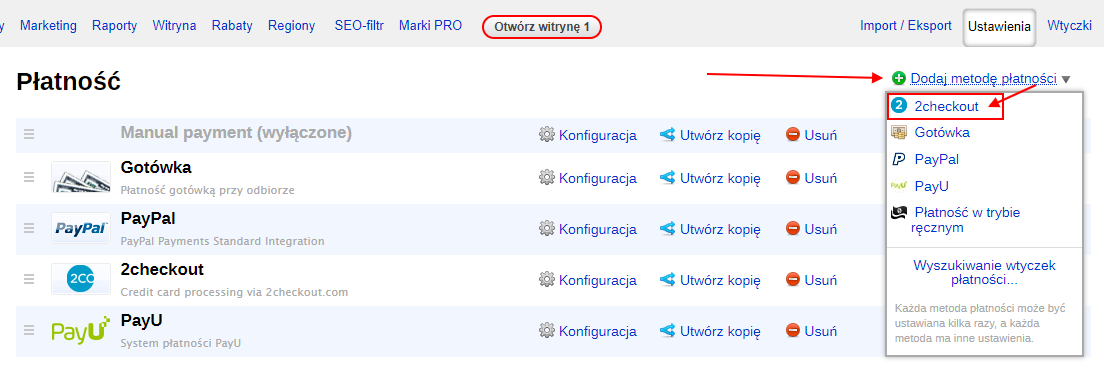
Go to the backend of the Shopy-Script app, open the "Settings → Payment" section, and select "2Checkout" from the "Add payment method" dropdown menu in the top right corner (if this option is not available in the list, it means you have not installed the plugins in Installer, as described above).
On the module configuration page, enter the desired name and description — as they should appear to customers during the checkout process.
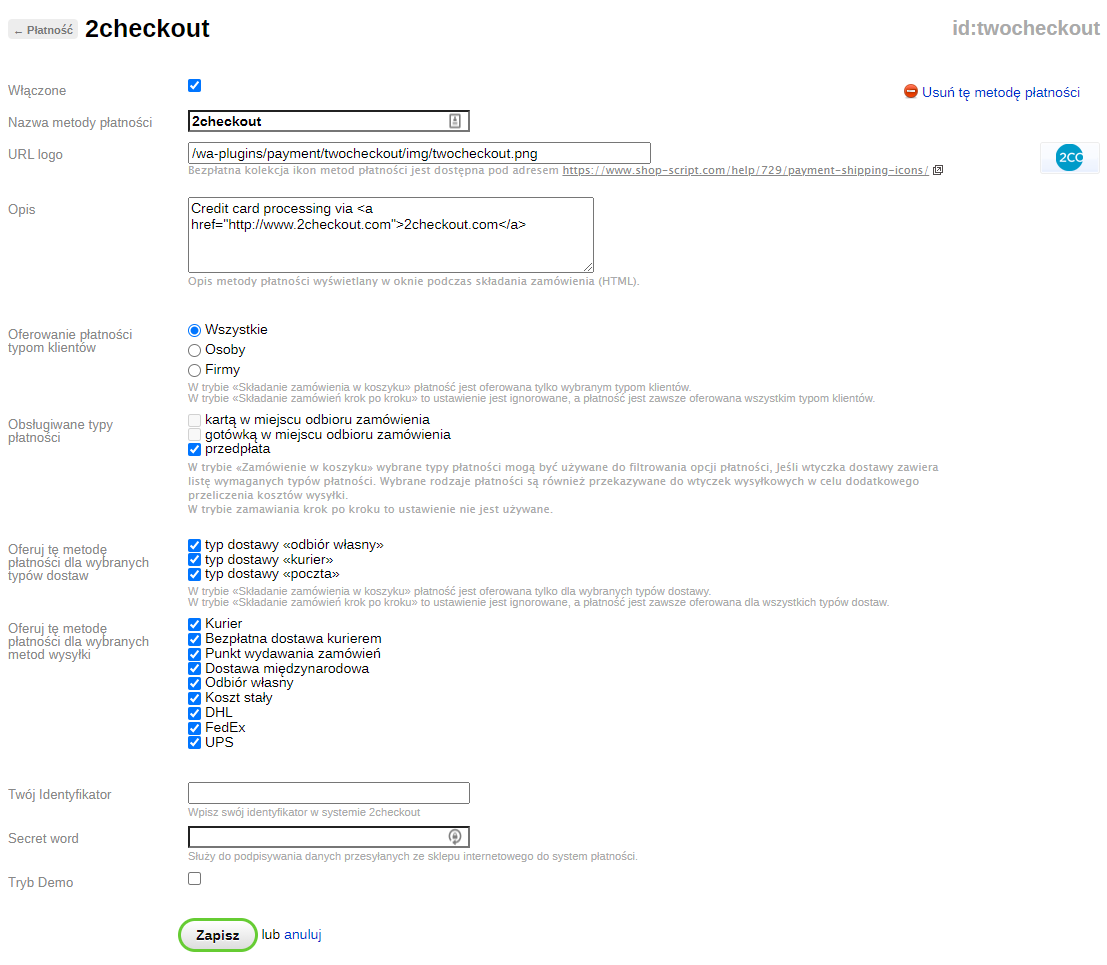
Set the following options:
Your Seller ID: enter your seller ID copied earlier from your 2Checkout account.
Secret word: enter any text in the corresponding setting on the 2Checkout website and copy it into this field in the payment method settings of the Shopy-Script app.
4. Done!
Your online store is now connected to the 2Checkout payment system.