HTML-sitemap - plugin for Shopy-Script application


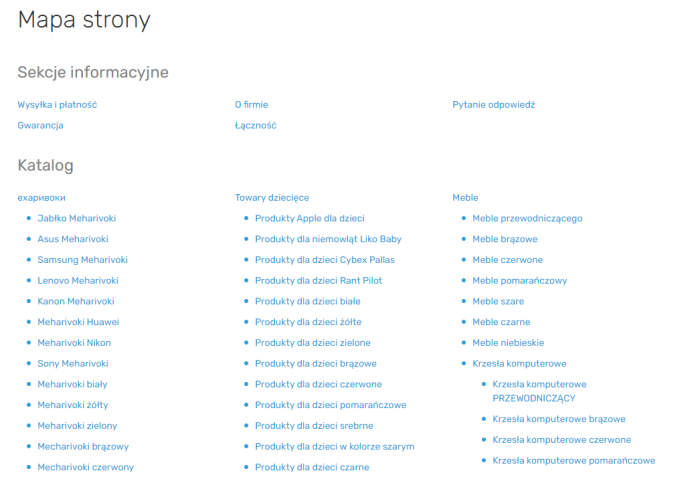
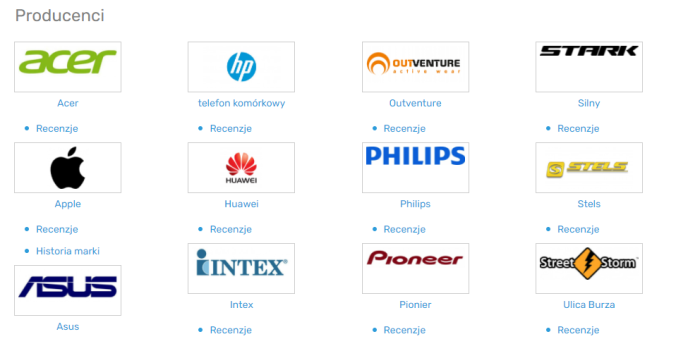
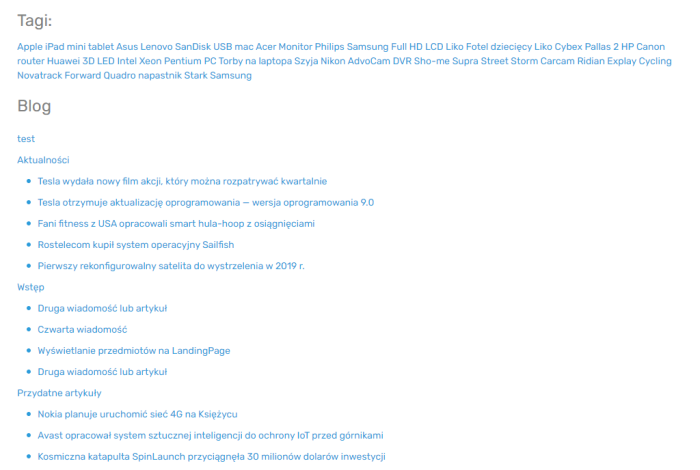


Plugin "HTML-sitemap" will let you create a site map for users within minutes and display it on your online store pages. A site map is a page containing links to other sections and pages of the website.
HTML site map with just a few clicks! Convenience for users, internal linking for Google, Bing and other robots!
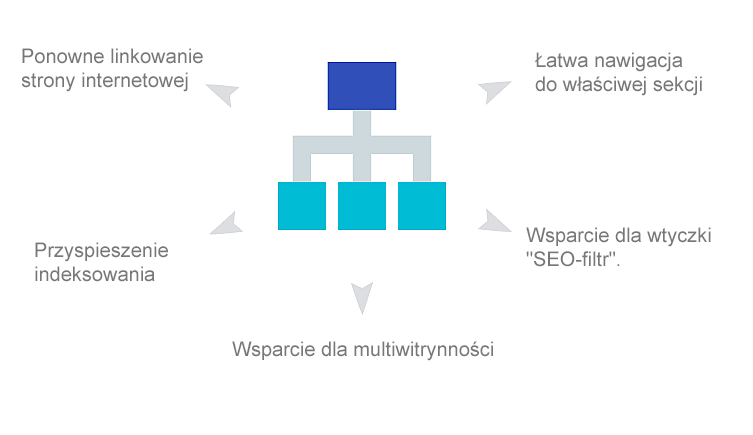
Main features of plugins:
 Easy navigation to the right section
When users visit the "Site map" page, they can easily find any categories or informational pages-using just 2 clicks.
 Fast information search
If the website structure is complex, the site map helps simplify the process of finding specific information, so users won't need to browse through unnecessary sections.
 Internal linking of the website
Plugin is needed for internal linking of site pages. It creates additional links to informational pages, categories, tag pages, and brands.
 Accelerated indexing
Search engines have a site map algorithm. Its presence ensures improved and faster indexing of the website by robots.
 Easy setup
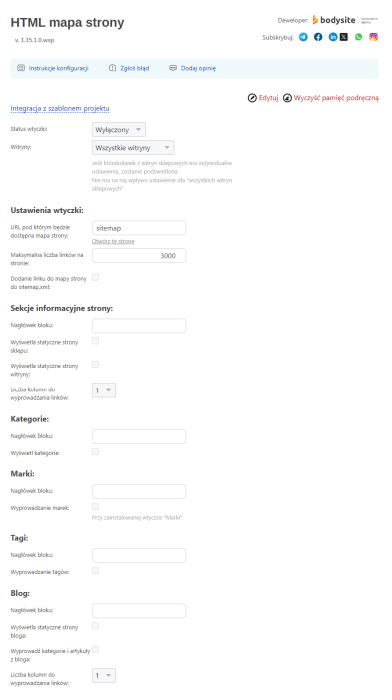
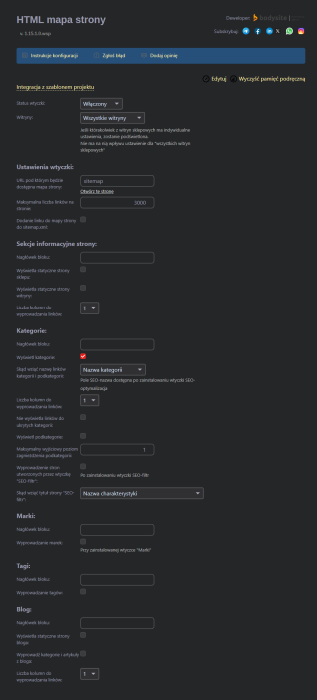
Settings plugins are easy to understand for any user. Simply select the sections you want to display on the page.
 Helpdesk for the "Blog" app
Plugin is compatible with the "Blog" app and allows displaying static blog pages, category links, and blog posts.
How does plugin work in practical examples?
Task 1. Create a map for users that displays links to informational pages and categories.
Solution:
1. Purchase, install, and enable the "HTML-sitemap" plugin.
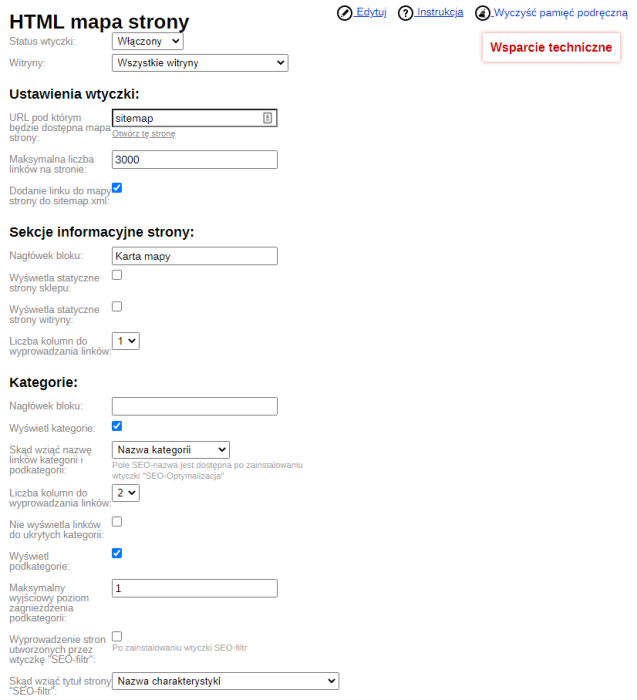
2. Specify the URL where the site map will be accessible.
3. Set the maximum number of links per page.
4. Check the box "Display static store pages".
5. Check the box "Display categories".
6. Save changes.
A site map has been created. It will be available at the URL specified in the plugins settings.
Task 2. Display category links on the site map, but not all of them (some categories are exceptions).
Solution:
1. Purchase, install, and enable the "HTML-sitemap" plugin.
2. Perform basic settings.
3. Check the option "Display categories".
4. On the list, mark the exception categories.
5. Save changes.
The problem has been solved using the plugins "HTML-sitemap".
Task 3. Display the site map on an existing page that already contains content.
Solution:
1. Purchase, install, and enable the "HTML-sitemap" plugin.
2. Perform basic settings.
3. Select the blocks that must appear in the site map.
4. Copy the code
{shopHtmlmapViewHelper::getHtmlmap()} from the instructions.
5. Paste the code on the selected page where the site map should appear.
The problem has been solved using the plugins "HTML-sitemap".
Task 4. Display a link to the site map in the project theme.
Solution:
1. Purchase, install, and enable the "HTML site map" plugin.
2. Perform basic settings.
3. Select the blocks that must appear in the site map.
4. Copy the code
{shopHtmlmapViewHelper::getDefaultHtml()}.
5. Place the code in the project theme at the desired location.
The problem has been solved using the plugins "HTML-sitemap".
All features of plugins:
Basic:
- You can set any URL to access the site map;
- Display the site map within a template;
- Display the site map on any page;
- You can set the maximum number of links to appear on the page;
- You can select the number of columns for displaying links (1, 2, 3, or 4);
- Output SEO name of plugins "SEO-optimization";
- Display links to pages created by the "SEO-filter" plugin;
- Possibility to set section names for blocks;
- Add a link to the site map in the sitemap.xml file;
- Helpdesk for multi-store support;
- Cache clearing.
Informational site sections:
- Block header;
- Display store static pages;
- Display website static pages;
- Number of columns for outputting links
Categories:
- Block header;
- Display categories;
- Source for category and subcategory link names;
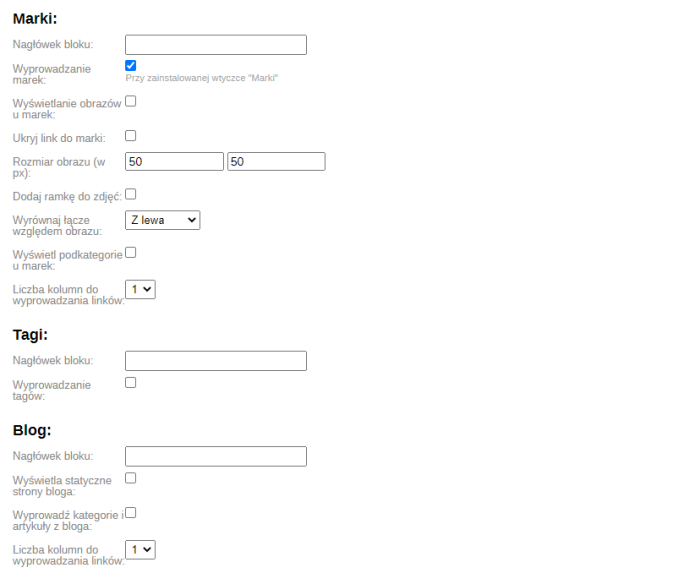
Brands:
- Block title;
- Brands to display;
- Show brand images;
- Hide brand link;
- Image size (in px);
- Add border to images;
- Align image link (left, right, center);
- Show brand subcategories;
- Number of columns for displaying links.
Tags:
- Block title;
- Display tags.
Blog:
- Block header;
- Displays blog static pages;
- Output blog categories and articles;
- Number of columns for outputting links.
Warning! Plugin does not output product links.
| Technical specifications | |
Developed for | Shopy-Script |
Localization settings | English, Polish, Russian |
UI backend support | 1.3, 2.0 |
Software type | Plugin |
Free | No |
| Developer and version plugins | |
Designer (programmer) | Bodysite |
License | Web Systems Pro |
Version | 1.15.1.1.wsp |
Update | 10/26/2024 |