

Documentation o wtyczce "Gemini"
How to get a Gemini API key.
To use the plugins Gemini in the Multilang application, you need to create an API key in Google AI Studio. The entire process takes only a few minutes.
Step 1. Open the API Keys section and go to Google AI Studio (you must log in first) and in the left menu, open the API Keys section. Then click the Create API key button in the upper right corner:
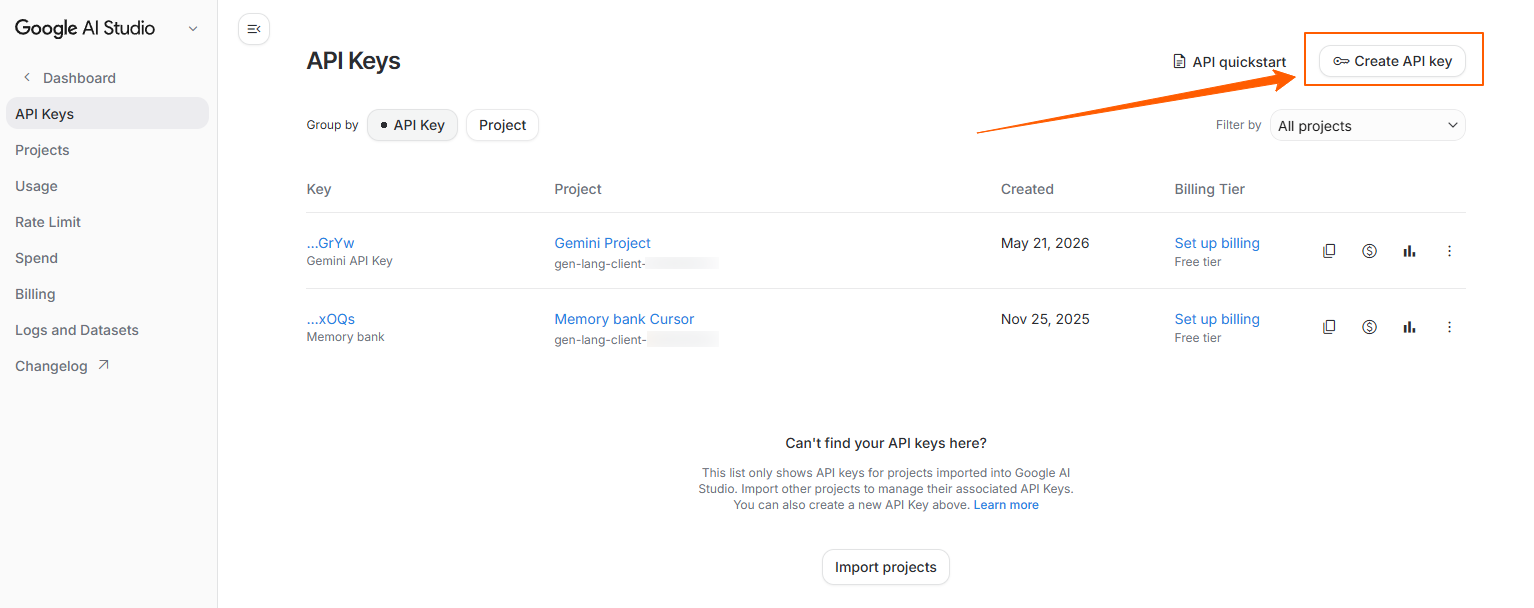
This section displays already created keys and the projects they are assigned to.
Step 2. Select or create a project. After clicking Create API key, a window for creating a new key will appear. In the name field, you can enter any convenient name, for example, Gemini API Key.
Below, you need to select a project. If a suitable project already exists, simply select it from the list. If the project has not yet been created, click Create project and create a new one:
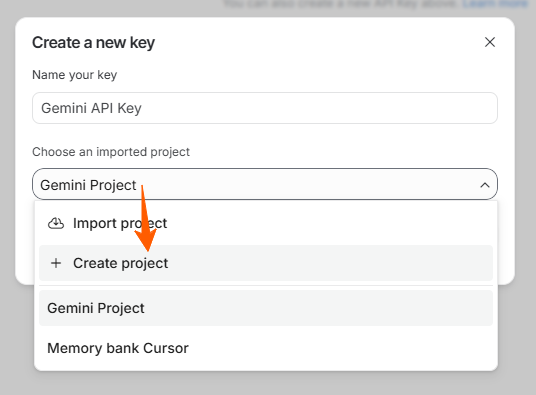
This is a convenient solution if you are configuring the Gemini API for the first time and have not yet created a project to work with the key.
Step 3. Copy the created API key. After creating the key, a window with its data will appear. Copy the value from the API Key field using the copy button on the right side:
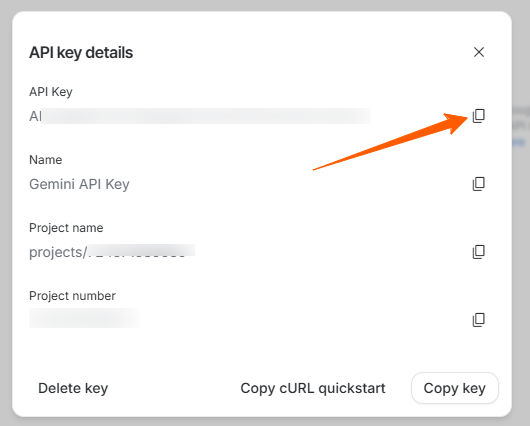
This is the key you need to paste into the plugins Gemini settings in the Multilang application.
How to use the key in the plugin.
After copying the key, open the plugins Gemini settings in Multilang, paste the API key into the API Key field, and save the settings. Then plugin will be able to retrieve the list of available Gemini models, and you will be able to select the appropriate translation model.
Important!
- An active Gemini API key is required for operation.
- Model availability and performance depend on your account and the current Gemini API limits.
- The Gemini API offers a free plan, but for regular use and larger translation volumes, its capabilities may be insufficient due to request limits and other restrictions.