

Guide o wtyczce "Product subpages translation"
Configuration and usage guide for the plugins "Product subpages translation".
Requirements and installation.
Before installation, make sure your system meets the minimum requirements:
- PHP version 7.4.33 - 8.3.30
- Installed and active app Multilang version not lower than 2026.07.5
- Installed Shopy-Script version not lower than 12.0.0.1192
- In the Multilang application, site languages and domain rules for your store are configured
The plugins is installed using the standard Web Systems Pro installer. After installation, go to the section Multilang → Plugins and make sure the plugin "Product subpages translation" is on the list.
Settings plugins.
The plugins settings page is located in the Multilang application at: Multilang → Plugins → Product subpages translation.
Main switch.
- Enable - the main switch for the plugins. When disabled, the plugin does not work either in the admin panel or on the store front.
Behavior during editing.
- Delete translations when deleting a subpage - when enabled, deleting a product subpage also removes all its translations from the database. It is recommended to keep this option enabled to prevent orphaned records in the database.
- Modal window full screen width - when enabled, the subpage editing window opens at 90% of the screen width. This is convenient for pages containing large amounts of content.
- Overwrite translations in modal window - when enabled, clicking the "Translate" button in the modal window replaces all existing field translations with new ones. When disabled, only empty fields will be translated.
- H1 fix - when enabled, the H1 header on the subpage is generated based on the "Title" field (subpage name), while the "Title" field is used exclusively for the
<title>tag in the page header. This option fixes a bug in the Shopy-Script application. If the issue is resolved in the future, this option can be disabled.
How to translate product subpages.
The main workflow involves editing translations directly in the standard product subpage dialog window. There is no need to open separate translation pages.
Step 1. Open the product page
Go to Shopy-Script → Products → Catalog, open the desired product for editing and go to the Subpages tab.
Step 2. Editing subpages.
Click "Edit" next to the subpage name or "Add subpage" to create a new one. The standard product subpage editing dialog window will open.
Step 3. Select translation language.
In the top right corner of the window, a language selection panel will appear:
- Expand the list and select the language you want to translate the subpage into.
- The Title, Title, Meta keywords, Meta description and Description (content) fields will change to show values for the selected language or remain empty if the translation has not yet been created.
- Original values in the base language are displayed via a label with green text above each field, provided the "Show base language additionally" checkbox is enabled.
Step 4. Adding a translation.
Click the "Translate" button in the top right corner - the plugin will automatically translate all fields using the translation provider configured in the Multilang application (Google Translate, Microsoft, Gemini, DeepSeek, OpenRouter, etc.).
To translate content into other locales, the base language fields to be translated must be filled in.
Step 5. Save the translated content.
To avoid losing translated fields, make sure to click the "Save" button - the plugin will automatically send the translation to the server along with the original data. No additional actions are required.
Important: For a new subpage (created for the first time), translation can only be saved after the subpage has received its ID from the server. Click "Save" once, after which you will be able to generate the translation.
Deleting a translation.
To remove a subpage translation for a specific language, simply clear all fields in the modal window for that language and click "Save".
Mass automatic translation of subpages.
If you have many subpages and want to translate them all at once, use mass automatic translation.
Step 1. Open the automatic translation form.
In the Multilang application, go to the section Shopy-Script → Automatic translation (available in the left menu of the application):
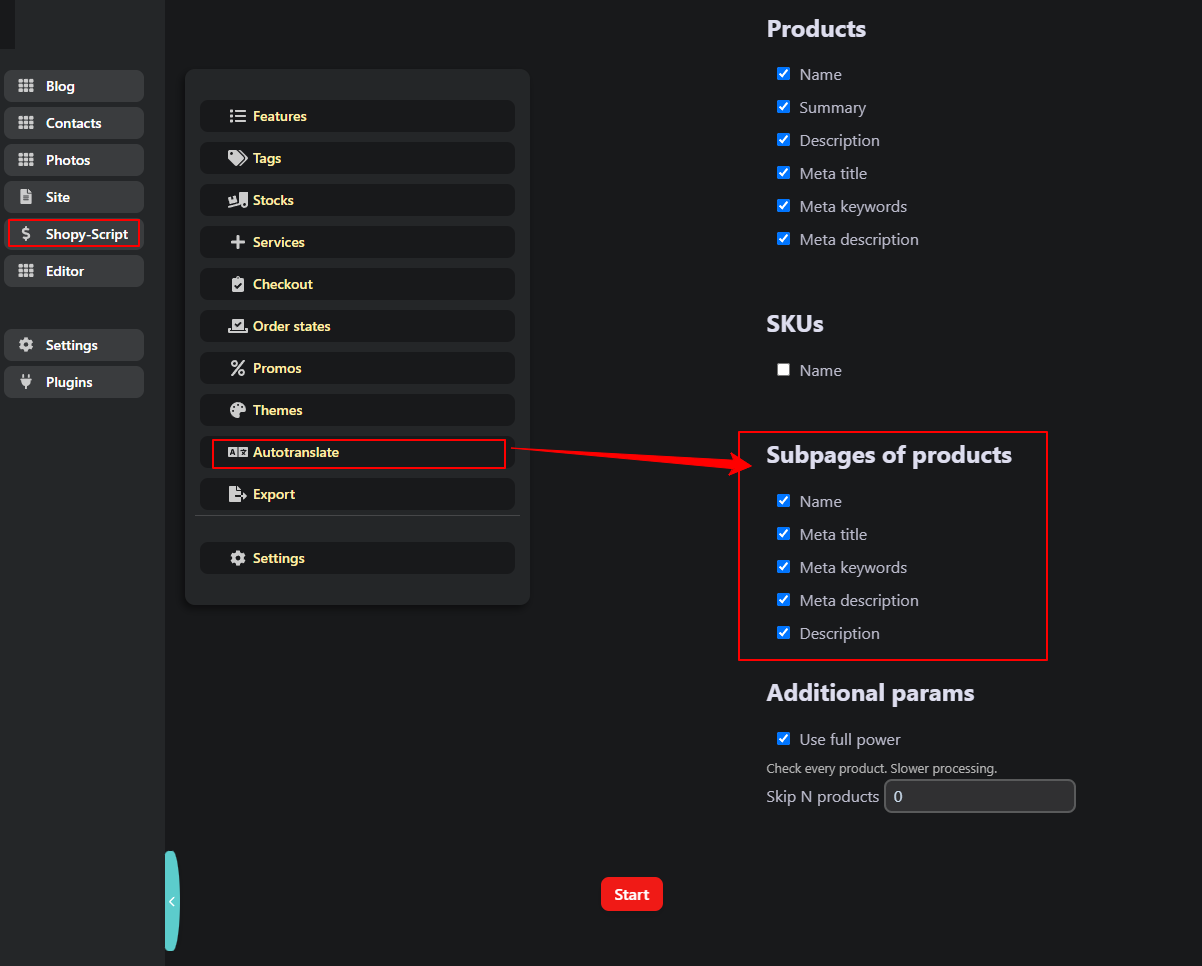
Step 2. Select fields to translate.
A new block appears in the automatic translation form: "Product subpages" (Subpages of products). Select the fields to be translated:
- Name (Name)
- META title
- META keywords
- META description
- Description (Description)
Step 3. Start automatic translation.
Select the source and target languages, choose the plugin to be used for automatic translation generation, click "Start", and the plugin will sequentially translate all subpages of the selected products. Progress is displayed in real time. Do not close the page until translation generation is complete.
Behavior on the store front.
Product subpages are automatically displayed in the language selected by the visitor according to the Multilang application settings. The Subpage name (Title) is inserted into the navigation (breadcrumbs) and as the page header (H1), provided the fix in the plugins settings is enabled.
Compatibility with other plugins.
Plugin works correctly with all standard graphical Shopy-Script plugins. When using external plugins that modify the way subpages are displayed on the store front, additional configuration may be required. We have made every effort to test existing plugins available in the marketplace for compatibility and to cover possible scenarios. However, if after installing the plugins you encounter issues with locale switching on the store front, the cause is almost certainly one of the plugins interacting with page structure in Shopy-Script. In such cases, please contact technical support - we will do our best to quickly resolve the compatibility issue.