
Telegram Notifications - plugin for sending notifications
Plugin for sending notifications to Telegram.

Telegram Notifications




Plugin for sending Telegram notifications to store administrators.
Plugin can send private news, as well as notifications to groups and channels.
Instructions for configuring Telegram notifications.
Step 1. Creating a notification bot and receiving a token
- Find the BotFather bot in Telegram and start a conversation with it;
- Send the /newbot command to the bot to create a new bot;
- BotFather will ask you to come up with a bot name. Think of one and send a reply message (for example: Notification Bot);
- After entering the name, BotFather will ask for a username (the bot's public name), which must end with bot (for example: shmobot);
- If everything goes well, BotFather will reply with "Done! Congratulations on your new bot." and provide a token for your new bot;
- Go to your bot using the link in news with the token and press /start. Your bot is created and ready to receive notifications from Shopy-Script app!
Step 2. Configuring the Shopy-Script app
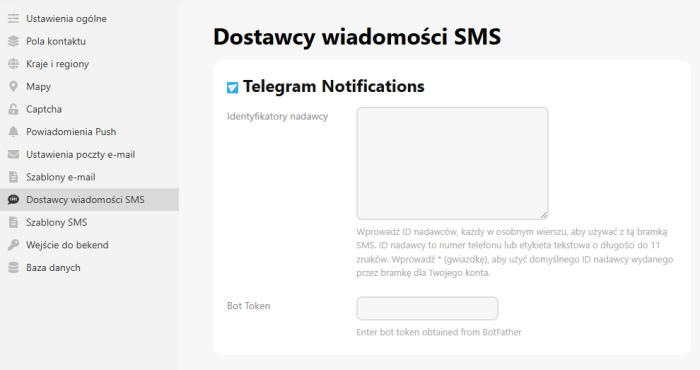
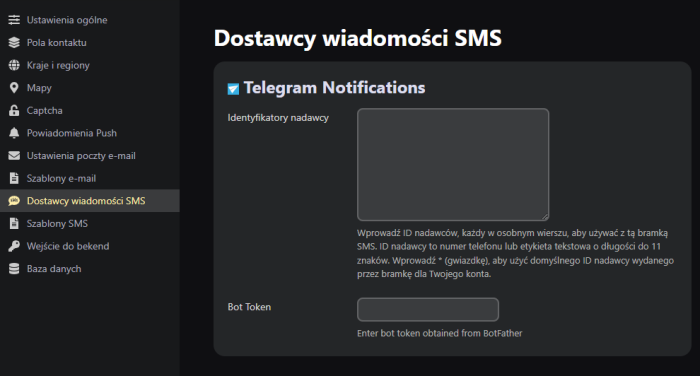
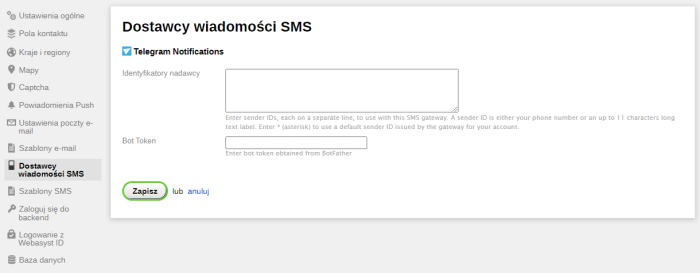
- Go to the admin panel of your website and navigate to Settings -> Suppliers news SMS;
- Select Telegram Notifications;
- In the "Sender IDs" field, enter "*";
- In the "Bot Token" field, enter the "TOKEN" you received from BotFather.
- Don't forget to click the Save button. Now you can start configuring notifications!
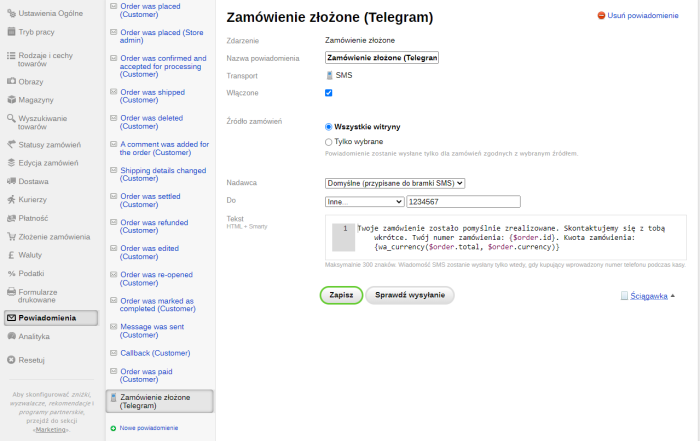
Step 3. Setting up notifications
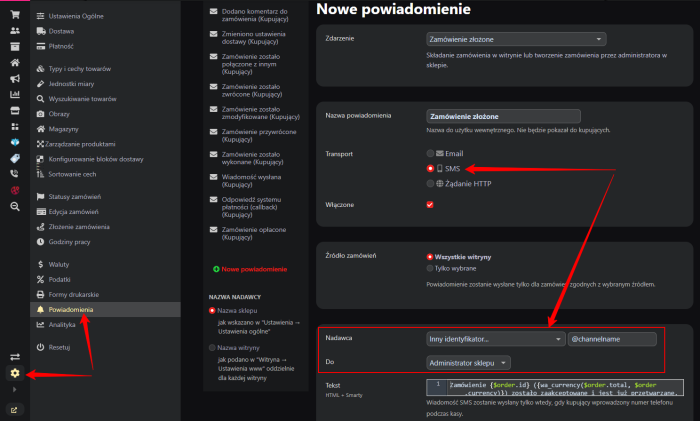
- In the website control panel, go to Shop -> Settings -> Notifications;
- Click the New notification button;
- Select the Event, enter a Notification name, and choose SMS as the transport method;
- Then, in the To field, select "Other..." and enter the Telegram recipient ID;
You can use your own ID, a group ID, or a channel ID (for example: 123456890 for a user and @channelname for a public group or channel). The easiest way to find your ID in Telegram is to send a message to the bot . - Edit the news text if needed.
- Click Save, then Test sending (during testing, you must enter the same ID in the To field).
- Congratulations! Now store notifications will appear in Telegram!
Plugin sends news only to administrators!
| Technical specifications | |
Developed for | Shopy-Script, Site |
Localization settings | English, Polish, Russian |
UI backend support | 1.3, 2.0 |
Software type | Plugin |
Free | Yes |
| Developer and version plugins | |
Designer (programmer) | CRCR |
License | LGPL |
Version | 1.0.3.4.wsp |
Update | 04/21/2026 |
Loading...
Loading...