

Guide o wtyczce "Canonical link"
plugins "Link Canonical" configuration guide
1. Purchase and install the plugin using "Installer".
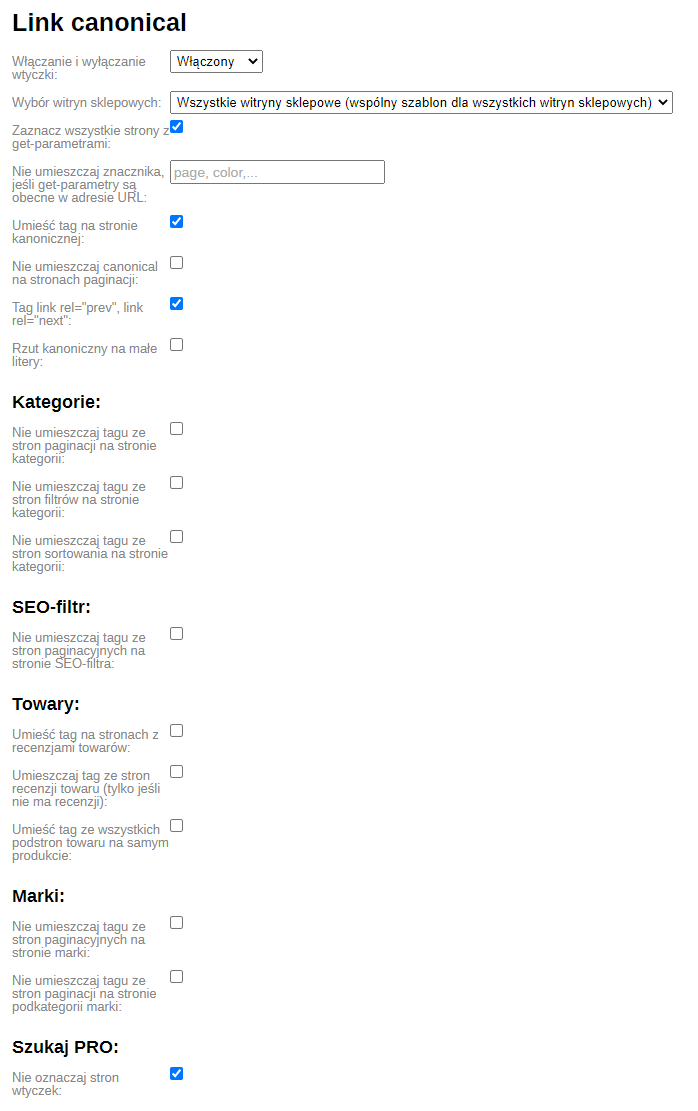
2. Enable the plugin and set the following options in the Shopy-Script -> "Plugins" -> "Link Canonical" section as recommended:
- Place the tag on all pages with GET parameters;
- Place the tag on the canonical page.
If your website has pages with GET parameters that must be canonical (indexed by search engines), enter those parameters separated by commas in the field "Do not place the tag if GET parameters are present in the URL".
3. To display the link rel="canonical" tag, paste the code into index.html (in your project theme, a different template might be used) between the head tags:
{if !empty($canonical)}<link rel="canonical" href="{$canonical}" />{/if}
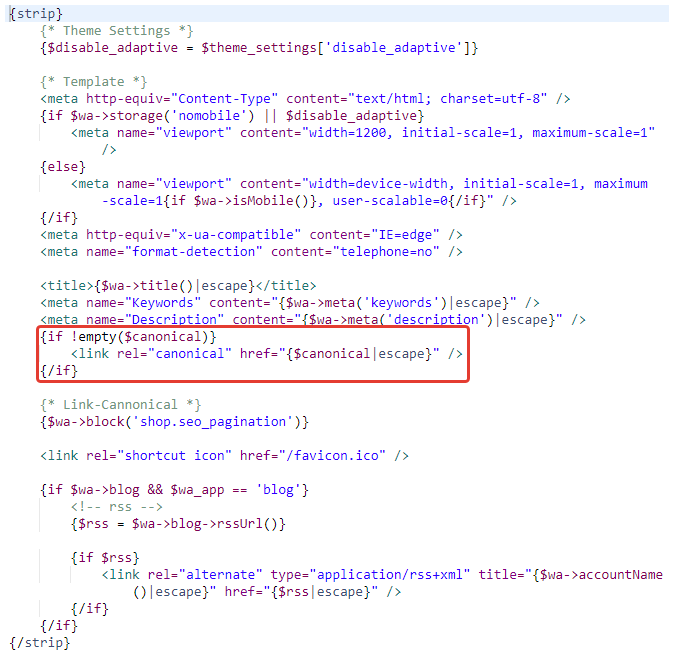
Warning! The code {if !empty($canonical)}<link rel="canonical" href="{$canonical}" />{/if} may already be present on website pages. If so, there is no need to implement it again. If the <head> container contains the code <link rel="canonical" href="{$canonical}" />, replace it with {if !empty($canonical)}<link rel="canonical" href="{$canonical}" />{/if}. If <link rel="canonical" href="{$canonical}" /> has any other validation (the line is wrapped with {if} and {/if} tags), do not add any code.
4. Check that tagging is correct on website pages:

5. To insert link rel="prev" and link rel="next" tags, place the following tag
{$wa->block("shop.seo_pagination")}
after the tag
<link rel="canonical" href="http://youdomain.com/..." />