

Connecting Google Indexing API o wtyczce "Fast index"
How to create a JSON key to submit pages to Google
It is assumed that the website has already been added to Google Search Console.
1. Create a project in the Cloud Console API
Go to the page https://console.cloud.google.com/iam-admin/serviceaccounts?hl=en
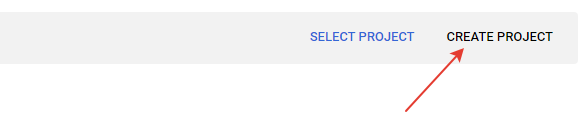
In the upper right corner, click the "CREATE PROJECT" button.
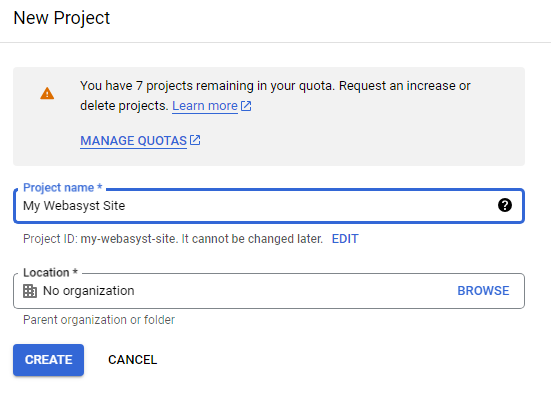
Enter any project name and click the CREATE button:
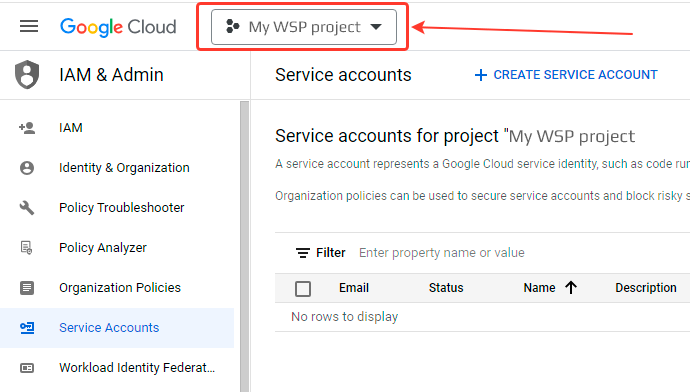
Once completed, make sure the project is selected here:
2. Create a service account
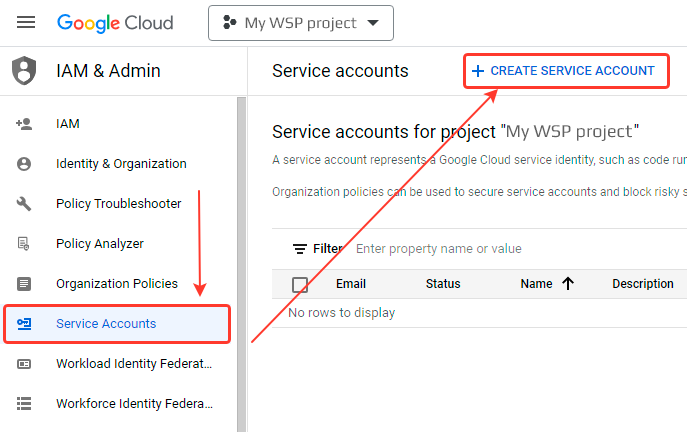
On the same page, create a service account using the CREATE SERVICE ACCOUNT button:
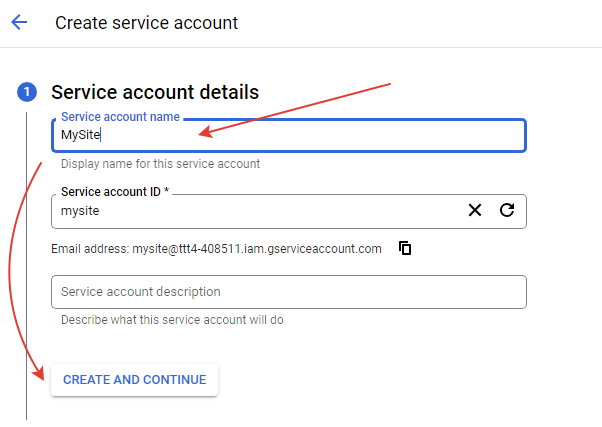
Enter any service account name in the "Service account name" field; the "Service account ID" field will be filled in automatically:
Select the role - Owner:
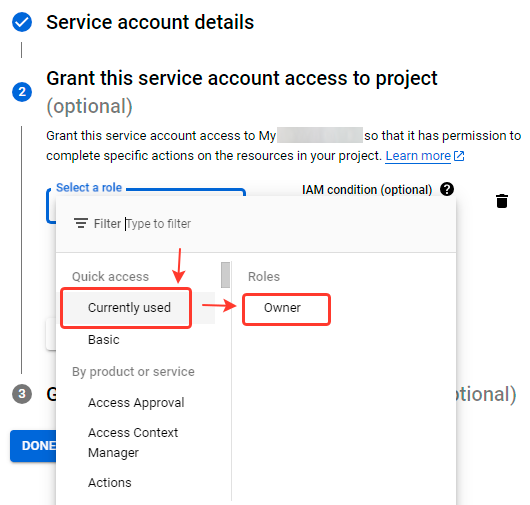
Then click the DONE button.
3. Create and download the JSON key
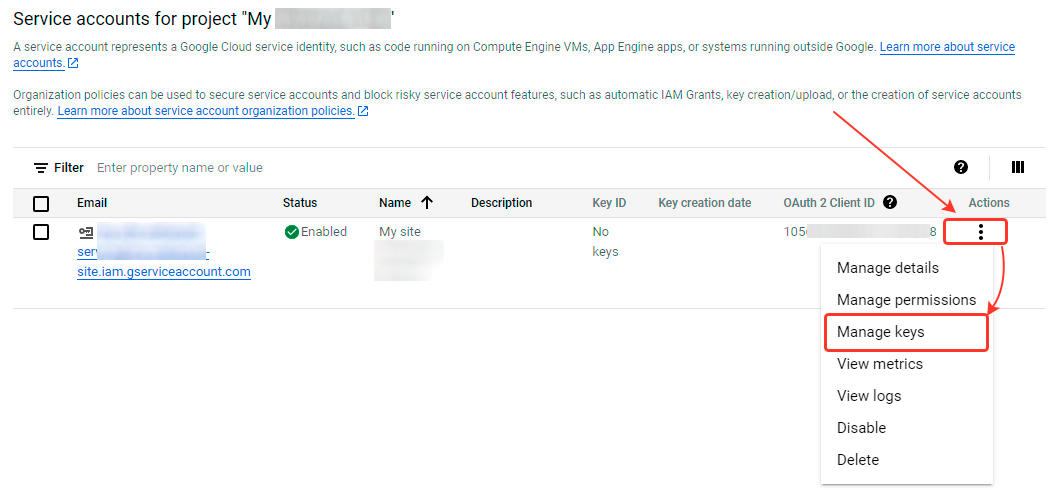
On the right side of the window, click the three dots next to the service account to open the context menu. Select "Manage keys":
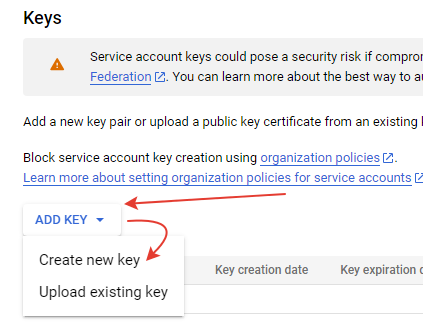
In the window that opens, click "ADD KEY", then "Create new key":
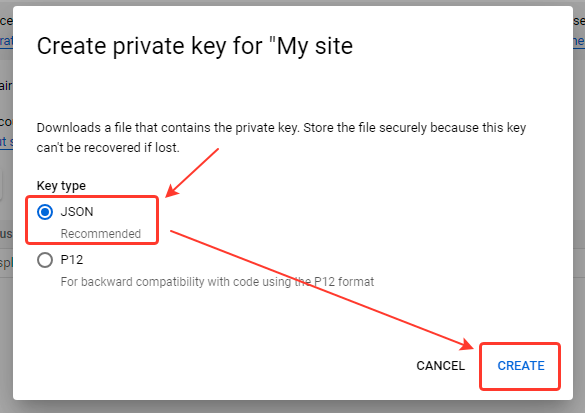
Select JSON, press CREATE, which will result in downloading the JSON key file:
4. Grant the service account access to website statistics
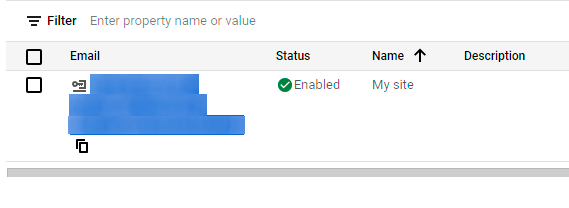
Copy the service account email address:
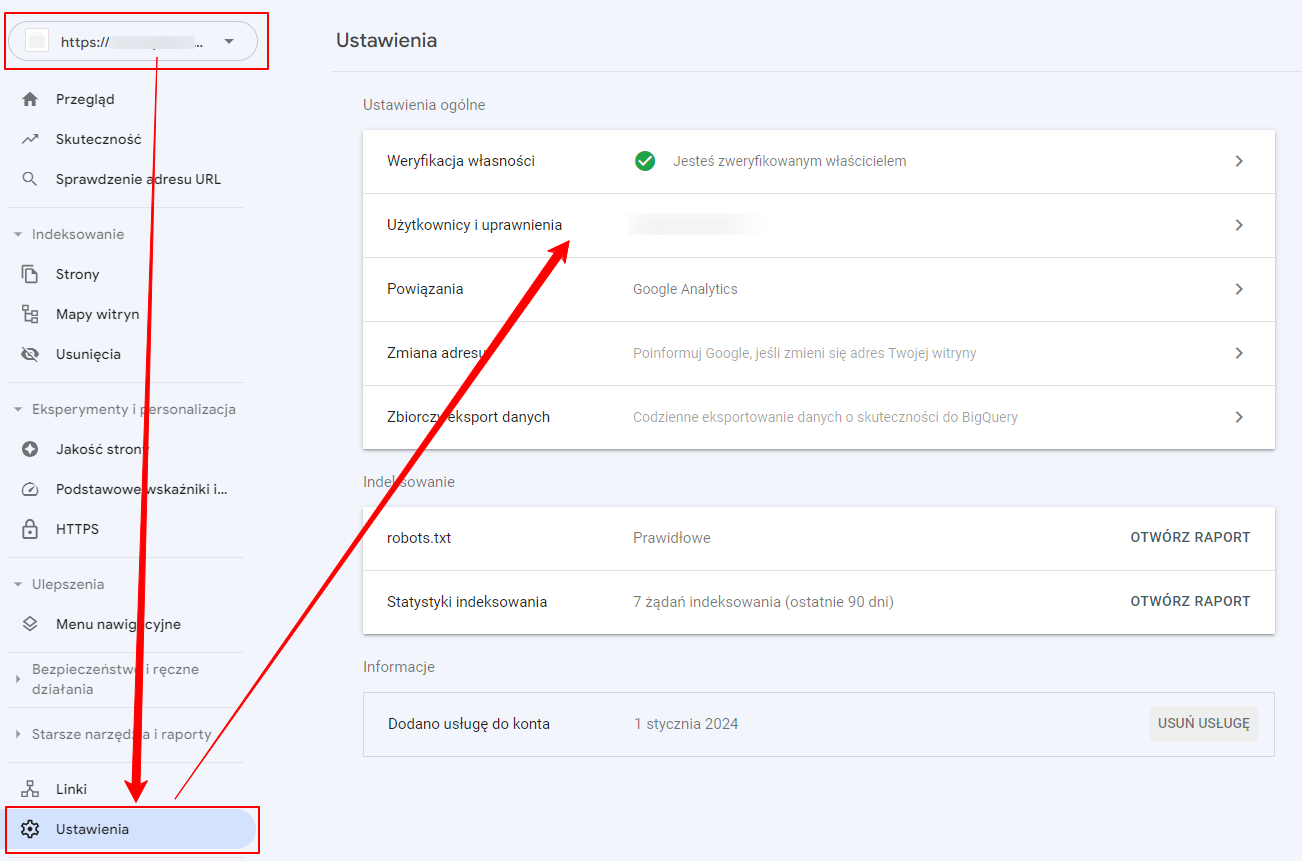
Go to the page: https://search.google.com/search-console?resource_id= and select your website.
In the left-hand menu, select "Settings", then in the window that opens, select "Users and permissions":
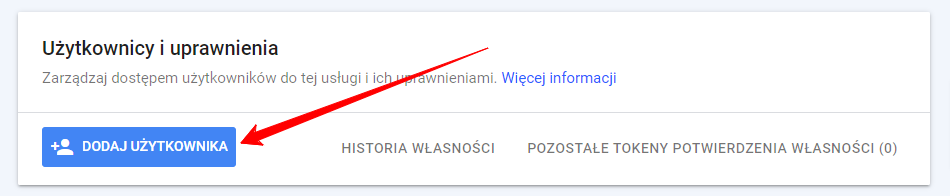
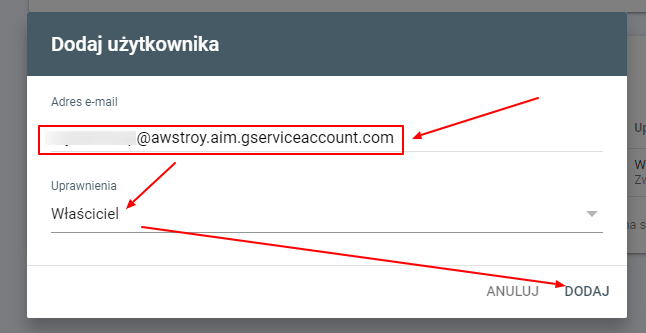
Click "Add user"
Enter the service account email address and add the user with Owner permissions.
5. Activate the API
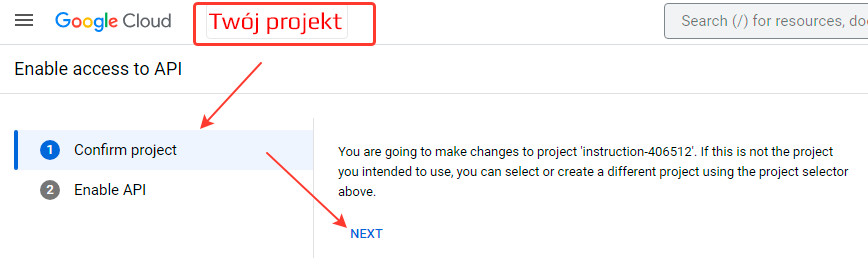
Make sure your project is selected and click NEXT:
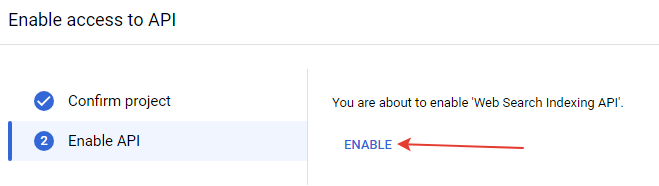
Then click ENABLE:
Summary
The previously downloaded JSON token file should be uploaded to plugins under the Google tab.
How to make sure the API is working?
API request statistics are available on this Google Cloud page: https://console.cloud.google.com/apis/api/indexing.googleapis.com/metrics?project=
Requests to Google are subject to rate limits. To check the limits, click this link https://console.cloud.google.com/apis/api/indexing.googleapis.com/quotas?hl=en