Discover everything our e-commerce platform has to offer - from setting up a store, through marketing and integrations, to security, technical support, and design. Find out how to grow your online sales with Web Systems Pro.
Expand your store’s capabilities with ready-made integrations - online payments, wholesalers, shipping, SEO, marketing, CRM, notifications, and more. All designed to help you operate faster, more effectively, and more conveniently.
Searching for support for your online store? Visit our blog, knowledge base, forum, and expert articles. Here you’ll find instructions, e-commerce tips, and answers to frequently asked questions - everything you need to run a successful online store.
We strive to explain in simple terms how our theme templates work - including descriptions of their features and settings. In addition, we regularly update and expand our instructions to ensure they remain clear and helpful at every stage of using the the
Discover everything our e-commerce platform has to offer - from setting up a store, through marketing and integrations, to security, technical support, and design. Find out how to grow your online sales with Web Systems Pro.
Expand your store’s capabilities with ready-made integrations - online payments, wholesalers, shipping, SEO, marketing, CRM, notifications, and more. All designed to help you operate faster, more effectively, and more conveniently.
Searching for support for your online store? Visit our blog, knowledge base, forum, and expert articles. Here you’ll find instructions, e-commerce tips, and answers to frequently asked questions - everything you need to run a successful online store.
We strive to explain in simple terms how our theme templates work - including descriptions of their features and settings. In addition, we regularly update and expand our instructions to ensure they remain clear and helpful at every stage of using the the
Documentation for plugins "Automatic notifications above site header"
Settings plugins (exactly as in the admin panel)
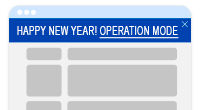
Settings plugins "Automatic notifications above site header" are presented solely for demonstration purposes. You can test the functionality of plugins only after purchase. We warn that the display of plugins settings is poorly adapted for mobile devices (as well as on the plugins settings page in the admin panel). This may be finalized in the future.
Customizing the appearance of notifications (general theme)
Notification for ~1-10 sty (New Year's holidays)
Notification for ~8 mar (International Women's Day)
Custom notification 1
Custom notification 2
Custom notification 3
Custom notification 4
Custom notification 5
Custom notification 6
Custom notification 7
Customizing the appearance of notifications (general theme)
Maximum possible value: 30 (current: 14).
restore default settings
Specify the size in pixels to be displayed in the computer version of the site.In the mobile version of the site (if notifications are enabled in the mobile version of the site) the size will be reduced to 12px.
141(n)30
Maximum possible value: 10 (now: 1).
restore default settings
Specify the height of the bottom border in pixels
11(n)10
Maximum possible value: 50 (current: 0).
restore default settings
Specify the size of the bottom indentation in pixels.
01(n)50
When enabled, it adds a close button to the notice, clicking which hides the notice, and cookies store information that the notice does not need to be displayed for an hour.It is not recommended to completely disable the close button - otherwise, the notice will significantly interfere with users on mobile devices.On pages with the GET parameter "shop_topnotice_testform", cookies are ignored, and to display the notice again after closing it, just refresh the page.If you accidentally closed the notice, didn't have time to configure it nicely, and now the notice is not displayed, either use the test page or temporarily disable the close button and reload the site page - cookies will be automatically reset.
Maximum possible value: 30 (now: 14).
restore default settings
Specify the size of the cross in pixels. The specified size will only affect the visual component: the clickable area after clicking, on which the notification is closed, is constant.
141(n)30
Themes are applied to elements with class "topnotice_title".
restore default settings
#deeeff
Maximum possible value: 30 (now: 14).
restore default settings
Specify the size in pixels to be displayed in the computer version of the page.In the mobile version of the page (if notifications are enabled in the mobile version of the page) the size will be reduced to 12px.
141(n)30
Themes are applied to elements with the class "topnotice_date".
restore default settings
#deeeff
Maximum possible value: 30 (now: 14).
restore default settings
Specify the size in pixels to be displayed in the computer version of the site.In the mobile version of the site (if notifications are enabled in the mobile version of the site) the size will be reduced to 12px.
141(n)30
Themes are applied to elements with the class "topnotice_rest".
restore default settings
#deeeff
Maximum possible value: 30 (now: 14).
restore default settings
Specify the size in pixels to be displayed in the computer version of the page.In the mobile version of the page (if notifications are enabled in the mobile version of the page) the size will be reduced to 12px.
141(n)30
Themes are applied to elements with the class "topnotice_time".
restore default settings
#deeeff
Maximum possible value: 30 (now: 14).
restore default settings
Specify the size in pixels that should be displayed in the computer version of the site.In the mobile version of the site (if notifications are enabled in the mobile version of the site) the size will be reduced to 12px.
141(n)30
Themes are applied to elements with the class "topnotice_usual".
restore default settings
#deeeff
Maximum possible value: 30 (now: 14).
restore default settings
Specify the size in pixels to be displayed in the computer version of the page.In the mobile version of the page (if notifications are enabled in the mobile version of the page) the size will be reduced to 12px.
141(n)30
Themes are applied to elements with the class "topnotice_link".
Maximum possible value: 30 (now: 14).
restore default settings
Specify the size in pixels to be displayed in the computer version of the page.In the mobile version of the page (if notifications are enabled in the mobile version of the page) the size will be reduced to 12px.
141(n)30
Notification about ~1-10 Dec (New Year's Eve)
restore default settings
Notification on ~1-10 Dec (New Year's Eve)
If "OFF" - the notification is not displayed on the page.If "ON for testing" - the notification is displayed on the page at any time, but only on pages with the GET parameter ?shop_topnotice_testform=1 (open the main page of the site, paste the fragment at the end of the URL and reload the page).If "ON always" - then the notification is always displayed on the page.If "ON on certain days" - the notification is displayed on the page only within a certain range of days.If "ON on certain days" - plugin will display warnings in the admin panel that the notification will soon be enabled: 3 days before the start of displaying it on the page according to the settings. At this moment, such functionality is in development, the release is expected in version 2.0.0.
After enabling, the notification will be displayed in both the computer and mobile versions of the site.After disabling, the notification will be displayed only in the computer version of the site.
restore default settings
HTML code usage is allowed.Extra spaces and line breaks are removed during display on the site. To wrap lines (if necessary), use the <br>To be able to flexibly adjust the colors and sizes of some elements, you must mark the data with classes. You can use the following classes:topnotice_title - for marking the "header" (or "introductory phrase").
topnotice_date - for marking dates.
topnotice_time - for marking working hours (e.g. on short days).
topnotice_rest - for marking weekends.
topnotice_usual - for marking days when you work normally.
topnotice_link - for marking links.
You can use classes at your discretion - it is not necessary to maintain the same text structure as in the default version.Using classes is optional, but it is recommended to be able to adjust the styling of elements in the plugins settings without writing CSS code.
Specify the number and month with a dot (first the day, then the month). Examples:25.12 - 25 December
05.02 - 5 February
5.2 - 5 February (you can do it this way, there will be no error; but it is better with zeros)
08.10 - 8 October
Do not write random numbers, otherwise plugin will not work properly!
25.121(n).(1)
restore default settings
Specify the number and month with a dot (first the day, then the month). Examples:25.12 - 25 December
05.02 - 5 February
5.2 - 5 February (you can do it this way, there will be no error; but it is better with zeros)
08.10 - 8 October
Do not write random numbers, otherwise plugin will not work properly!The next day after turning off the notification plugin will display a warning about it in the backend. This functionality will appear in version plugins 2.0 - do not forget to update!
12.011(n).(1)
Notification on ~8 Mar (International Women's Day)
restore default settings
Notification on ~8 Mar (International Women's Day)
If "DIS." - the notification is not displayed on the page.If "EN. for testing" - the notification is displayed on the page at any time, but only on pages with the GET parameter ?shop_topnotice_testform=3 (open the main page of the site, paste the fragment at the end of the URL and reload the page).If "EN. always" - then the notification is always displayed on the page.If "EN. on certain days" - the notification is displayed on the page only within a certain range of days.If "EN. on certain days" - plugin will display warnings in the admin panel that the notification will soon be enabled: 3 days before the start of displaying it on the page according to the settings. At this moment, such functionality is in development, the release is expected in version 2.0.0.
After enabling, the notification will be displayed in both the computer and mobile versions of the site.After disabling, the notification will be displayed only in the computer version of the site.
HTML code usage is allowed.Additional spaces and line breaks are removed during display on the site. To wrap lines (if necessary), use the <br> tag.To flexibly adjust the colors and sizes of some elements, you must mark the data with classes. You can use the following classes:topnotice_title - for marking the "title" (or "introductory phrase").
topnotice_date - for marking dates.
topnotice_time - for marking working hours (e.g., on short days).
topnotice_rest - for weekend markers.
topnotice_usual - for marking days when you work normally.
topnotice_link - for marking links.
You can use classes at your discretion - it is not necessary to maintain the same text structure as in the default version.Using classes is optional, but it is recommended to allow styling of elements in the settings of plugins without writing CSS code.
restore default settings
Specify the number and month with a dot (first day, then month). Examples:25.12 - 25 December
05.02 - 5 February
5.2 - 5 February (you can do it this way, there will be no error; but it's better with zeros)
08.10 - 8 October
Do not write random numbers, otherwise plugin will not work properly!
08.031(n).(1)
restore default settings
Specify the number and month with a dot (first day, then month). Examples:25.12 - 25 December
05.02 - 5 February
5.2 - 5 February (you can do it this way, there will be no error; but it's better with zeros)
08.10 - 8 October
Do not write random numbers, otherwise plugin will not work properly!The next day after turning off the notification plugin will display a warning about it in the backend. Such functionality will appear in version plugins 2.0 - don't forget to update!
10.031(n).(1)
Custom notice 1
restore default settings
Custom notice 1
If "DISABLED" - the notice is not displayed on the page.If "ENABLED for testing" - the notice is displayed on the page at any time, but only on pages with the GET parameter ?shop_topnotice_testform=4 (open the main page of the site, paste the fragment at the end of the URL and reload the page).If "ENABLED always" - then the notice is always displayed on the page.If "ENABLED on certain days" - the notice is displayed on the page only within a certain range of days.If "ENABLED on certain days" - plugin will display warnings in the admin panel that the notice will soon be enabled: 3 days before it starts displaying on the page according to the settings. At the moment, this functionality is in development, awaiting release in version 2.0.0.
After enabling, the notification will be displayed in both the computer and mobile versions of the site.After disabling, the notification will be displayed only in the computer version of the site.
HTML code usage is allowed.Additional spaces and line breaks are removed during display on the site. To wrap lines (if necessary), use the <br>To be able to flexibly adjust the colors and sizes of some elements, you must mark the data with classes. You can use the following classes:topnotice_title - for marking the "title" (or "introductory phrase").
topnotice_date - for marking dates.
topnotice_time - for marking working hours (e.g., on short days).
topnotice_rest - for weekend marks.
topnotice_usual - for marking days when you work normally.
topnotice_link - for marking links.
You can use classes at your discretion - it is not necessary to maintain the same text structure as in the default version.Using classes is optional, but it is recommended to be able to adjust the styling of elements in the plugins settings without writing CSS code.
Specify the day and month through a dot (first the day, then the month). Examples:25.12 - 25 December
05.02 - 5 February
5.2 - 5 February (you can also do this, there will be no error; but it's better with zeros)
08.10 - 8 October
Do not write random numbers, otherwise plugin will not work properly!
1(n).(1)
Specify the day and month through a dot (first the day, then the month). Examples:25.12 - 25 December
05.02 - 5 February
5.2 - 5 February (you can do it this way, there will be no error; but it is better with zeros)
08.10 - 8 October
Do not write random numbers, otherwise plugin will not work properly!The next day after turning off the notification plugin will display a warning about this in the backend. This functionality will appear in version plugins 2.0 - do not forget to update!
1(n).(1)
Custom notification 2
restore default settings
Custom notification 2
If "OFF" - the notification is not displayed on the page.If "ON for testing" - the notification is displayed on the page at any time, but only on pages with the GET parameter ?shop_topnotice_testform=5 (open the homepage of the site, paste the fragment at the end of the URL and reload the page).If "ON always" - then the notification is always displayed on the page.If "ON on certain days" - the notification is displayed on the page only within a certain range of days.If "ON on certain days" - plugin will display warnings in the admin panel that the notification will soon be enabled: 3 days before the start of displaying it on the page according to the settings. This functionality is currently in development, expected to be released in version 2.0.0.
Once enabled, the notification will be displayed in both the desktop and mobile versions of the site.Once disabled, the notification will be displayed only in the desktop version of the site.
HTML code usage is allowed.Extra spaces and line breaks are removed during display on the site. To wrap lines (if necessary), use the tag <br>To be able to flexibly adjust the colors and sizes of some elements, you must mark the data with classes. You can use the following classes:topnotice_title - to mark the "header" (or "introductory phrase").
topnotice_date - to mark dates.
topnotice_time - to mark working hours (e.g., on short days).
topnotice_rest - to mark weekend signs.
topnotice_usual - to mark days when you work normally.
topnotice_link - to mark links.
You can use classes at your discretion - it is not necessary to maintain the same text structure as in the default version.Using classes is optional, but it is recommended to be able to adjust the styling of elements in the plugins settings without writing CSS code.
Specify the day and month through a dot (first the day, then the month). Examples:25.12 - 25 December
05.02 - 5 February
5.2 - 5 February (you can also do this; there will be no error; but it is better with zeros)
08.10 - 8 October
Do not write random numbers, otherwise plugin will not work properly!
1(n).(1)
Specify the date and month through a point (first day, then month). Examples:25.12 - 25 December
05.02 - 5 February
5.2 - 5 February (this is also possible, there will be no error; but it is better with zeros)
08.10 - 8 October
Do not write random numbers, otherwise plugin will not work properly!The next day after turning off the notification plugin will display a warning about this in the backend. This functionality will appear in version plugins 2.0 - do not forget to update!
1(n).(1)
Custom notification 3
restore default settings
Custom notification 3
If "DIS." - the notification is not displayed on the page.If "ON for testing" - the notification is displayed on the page at any time, but only on pages with the GET parameter ?shop_topnotice_testform=6 (open the main page of the site, paste the fragment at the end of the URL and reload the page).If "ON always" - then the notification is always displayed on the page.If "ON on certain days" - the notification is displayed on the page only within a certain range of days.If "ON on certain days" - plugin will display warnings in the admin panel that the notification will soon be enabled: 3 days before it starts displaying on the page according to the settings. This functionality is currently under development, the release is expected in version 2.0.0.
Once enabled, the notification will be displayed in both the computer and mobile versions of the site.Once disabled, the notification will be displayed only in the computer version of the site.
HTML code usage is allowed.Extra spaces and line breaks are removed during display on the site. To wrap lines (if necessary), use the <br>To be able to flexibly adjust the colors and sizes of some elements, you must mark the data with classes. You can use the following classes:topnotice_title - to mark the "title" (or "introductory phrase").
topnotice_date - to mark dates.
topnotice_time - to mark working hours (e.g., on short days).
topnotice_rest - to mark weekend labels.
topnotice_usual - to mark days when you work normally.
topnotice_link - to mark links.
You can use classes at your own discretion - it is not necessary to maintain the same text structure as in the default version.Using classes is optional, but it is recommended to be able to adjust the styling of elements in the plugins settings without writing CSS code.
Specify the day and month through a dot (first the day, then the month). Examples:25.12 - 25 December
05.02 - 5 February
5.2 - 5 February (you can do this too, there will be no error; but it's better with zeros)
08.10 - 8 October
Do not write random numbers, otherwise plugin will not work properly!
1(n).(1)
Specify the number and month through a point (first the day, then the month). Examples:25.12 - 25 December
05.02 - 5 February
5.2 - 5 February (you can also do this, there will be no error; but it's better with zeros)
08.10 - 8 October
Do not write random numbers, otherwise plugin will not work properly!The next day after the notification is turned off, plugin will display a warning about this in the backend. This functionality will appear in version plugins 2.0 - do not forget to update!
1(n).(1)
Custom notification 4
restore default settings
Custom notification 4
If "OFF" - the notification is not displayed on the page.If "ON for testing" - the notification is displayed on the page at any time, but only on pages with the GET parameter ?shop_topnotice_testform=7 (open the main page of the site, paste the fragment at the end of the URL and reload the page).If "ON always" - then the notification is always displayed on the page.If "ON on certain days" - the notification is displayed on the page only within a certain range of days.If "ON on certain days" - plugin will display warnings in the admin panel that the notification will soon be turned on: 3 days before it starts displaying on the page according to the settings. This functionality is currently in development, expected to be released in version 2.0.0.
When enabled, the notification will be displayed in both the desktop and mobile versions of the site.When disabled, the notification will be displayed only in the desktop version of the site.
HTML code usage is allowed.Extra spaces and line breaks are removed during display on the site. To wrap lines (if necessary), use the <br>To flexibly adjust the colors and sizes of some elements, you need to mark them with classes. You can use the following classes:topnotice_title - to mark the "title" (or "introductory phrase").
topnotice_date - to mark dates.
topnotice_time - to mark working hours (e.g., on short days).
topnotice_rest - to mark weekend signs.
topnotice_usual - to mark days when you usually work.
topnotice_link - to mark links.
You can use classes at your discretion - it is not necessary to maintain the same text structure as in the default version.Using classes is optional, but it is recommended to be able to adjust the styling of elements in the plugins settings without writing CSS code.
Specify the day and month through a dot (first the day, then the month). Examples:25.12 - 25 December
05.02 - 5 February
5.2 - 5 February (you can do this too, there will be no error; but it's better with zeros)
08.10 - 8 October
Do not write random numbers, otherwise plugin will not work properly!
1(n).(1)
Specify the day and month through a point (first the day, then the month). Examples:25.12 - 25 December
05.02 - 5 February
5.2 - 5 February (this is also possible, there will be no error; but it is better with zeros)
08.10 - 8 October
Do not write random numbers, otherwise plugin will not work properly!The next day after turning off the notification plugin will display a warning about this in the backend. This functionality will appear in version plugins 2.0 - do not forget to update!
1(n).(1)
Custom notification 5
restore default settings
Custom notification 5
If "DISABLED" - the notification is not displayed on the page.If "ENABLED for testing" - the notification is displayed on the page at any time, but only on pages with the GET parameter ?shop_topnotice_testform=8 (open the main page of the site, paste the fragment at the end of the URL and reload the page).If "ENABLED always" - then the notification is always displayed on the page.If "ENABLED on certain days" - the notification is displayed on the page only within a certain range of days.If "ENABLED on certain days" - plugin will display warnings in the admin panel that the notification will soon be enabled: 3 days before the start of displaying it on the page according to the settings. At this moment, this functionality is under development, the release is expected in version 2.0.0.
After enabling, the notification will be displayed in both the computer and mobile versions of the site.After disabling, the notification will be displayed only in the computer version of the site.
HTML code usage is allowed.Extra spaces and line breaks are removed during display on the site. To wrap lines (if necessary), use the tag <br>To be able to flexibly adjust the colors and sizes of some elements, you must mark the data with classes. You can use the following classes:topnotice_title - to mark the "header" (or "introductory phrase").
topnotice_date - to mark dates.
topnotice_time - to mark working hours (e.g., on short days).
topnotice_rest - for weekend markers.
topnotice_usual - to mark days when you work normally.
topnotice_link - to mark links.
You can use classes at your own discretion - it is not necessary to maintain the same text structure as in the default version.Using classes is optional, but it is recommended to be able to adjust the styling of elements in the plugins settings without writing CSS code.
Specify the day and month through a dot (first the day, then the month). Examples:25.12 - 25 December
05.02 - 5 February
5.2 - 5 February (you can do it this way, there will be no error; but it is better with zeros)
08.10 - 8 October
Do not write random numbers, otherwise plugin will not work correctly!
1(n).(1)
Specify the day and month through a point (first day, then month). Examples:25.12 - 25 December
05.02 - 5 February
5.2 - 5 February (this is also possible, there will be no error; but it is better with zeros)
08.10 - 8 October
Do not write random numbers, otherwise plugin will not work correctly!The next day after turning off the notification plugin will display a warning about this in the backend. This functionality will appear in version plugins 2.0 - do not forget to update!
1(n).(1)
Custom Notification 6
restore default settings
Custom Notification 6
If "DIS." - the notification is not displayed on the page.If "EN. for testing" - the notification is displayed on the page at any time, but only on pages with the GET parameter ?shop_topnotice_testform=9 (open the main page of the site, paste the fragment at the end of the URL and reload the page).If "EN. always" - then the notification is always displayed on the page.If "EN. on certain days" - the notification is displayed on the page only within a certain range of days.If "EN. on certain days" - plugin will display warnings in the admin panel that the notification will soon be enabled: 3 days before it starts displaying on the page according to the settings. This functionality is currently in development, expected to be released in version 2.0.0.
After enabling, the notification will be displayed in both the computer and mobile versions of the site.After disabling, the notification will be displayed only in the computer version of the site.
HTML code usage is allowed.Additional spaces and line breaks are removed when displayed on the site. To wrap lines (if necessary), use the <br>To be able to flexibly adjust the colors and sizes of some elements, you must mark the data with classes. You can use the following classes:topnotice_title - for marking the "header" (or "introductory phrase").
topnotice_date - for marking dates.
topnotice_time - for marking working hours (e.g., on short days).
topnotice_rest - for weekend markers.
topnotice_usual - for marking days when you work normally.
topnotice_link - for marking links.
You can use classes at your discretion - it is not necessary to maintain the same text structure as in the default version.Using classes is optional, but it is recommended to be able to adjust the styling of elements in the plugins settings without writing CSS code.
Specify the day and month through a dot (first the day, then the month). Examples:25.12 - 25 December
05.02 - 5 February
5.2 - 5 February (you can also do this, there will be no error; but it is better with zeros)
08.10 - 8 October
Do not write random numbers, otherwise plugin will not work correctly!
1(n).(1)
Specify the day and month through a point (first the day, then the month). Examples:25.12 - 25 December
05.02 - 5 February
5.2 - 5 February (can also be like this, there will be no error; but it is better with zeroes)
08.10 - 8 October
Do not write random numbers, otherwise plugin will not work properly!The next day after the notification is turned off, plugin will show a warning about this in the backend. Such functionality will appear in version plugins 2.0 - do not forget to update!
1(n).(1)
Custom notification 7
restore default settings
Custom notification 7
If "OFF" - the notification is not displayed on the page.If "ON for testing" - the notification is displayed on the page at any time, but only on pages with the GET parameter ?shop_topnotice_testform=10 (open the main page of the site, paste the fragment at the end of the URL and reload the page).If "ON always" - then the notification is always displayed on the page.If "ON on specified days" - the notification is displayed on the page only within a specified range of days.If "ON on specified days" - plugin will show warnings in the admin panel that the notification will soon be enabled: 3 days before the start of displaying it on the page according to the settings. This functionality is currently in development, expected to be released in version 2.0.0.
When enabled, the notification will be displayed in both the desktop and mobile versions of the site.When disabled, the notification will be displayed only in the desktop version of the site.
HTML code usage is allowed.Extra spaces and line breaks are removed during display on the site. To wrap lines (if necessary), use the <br>To flexibly adjust the colors and sizes of some elements, you must mark the data with classes. You can use the following classes:topnotice_title - for marking the "title" (or "introductory phrase").
topnotice_date - for marking dates.
topnotice_time - for marking working hours (e.g., on short days).
topnotice_rest - for weekend markers.
topnotice_usual - for marking days when you work normally.
topnotice_link - for marking links.
You can use classes as you see fit - it is not necessary to maintain the same text structure as in the default version.Using classes is optional, but it is recommended to allow styling of elements in the plugins settings without writing CSS code.
Specify the day and month through a dot (first the day, then the month). Examples:25.12 - 25 December
05.02 - 5 February
5.2 - 5 February (you can also do this, there will be no error; but it is better with zeros)
08.10 - 8 October
Do not write random numbers, otherwise plugin will not work properly!
1(n).(1)
Specify the day and month through a point (first the day, then the month). Examples:25.12 - 25 December
05.02 - 5 February
5.2 - 5 February (you can do it this way, there will be no error; but it's better with zeros)
08.10 - 8 October
Do not write random numbers, otherwise plugin will not work properly!The next day after disabling the notification plugin will display a warning about this in the backend. This functionality will appear in version plugins 2.0 - do not forget to update!
1(n).(1)
Configuration instructions for plugins
Install the plugin
Go to the plugins settings (Shop --> Plugins ---> Automatic notifications above site header)
Enable the plugin (in the plugins settings)
Enable the notification in test mode (e.g.: "Notification about ~1-10 Dec (New Year's Eve)"), change the notification content using classes (see tips on the plugins settings page).
In a new browser tab, go to the page of your site with the GET parameter to test the plugin (see the hint in the plugins settings).
Make sure the notification is displayed in the header of the site, and take a look at its appearance.
Configure the notification content in the plugins settings, adjust the appearance of the block and at the same time check how the notification changes with each change. Make sure the block looks perfect!
After finalizing the content and layout of the notification, change its status to "Enabled, according to the plugins settings" and specify below the date when the notification should be displayed.